



 Continue with Google
What a Roth conversion does
A Roth conversion moves money from a pre-tax account (a traditional IRA, 401(k), 403(b) and the like) into a Roth account. You pay income tax on it now; later, qualified withdrawals from the Roth are tax-free. US
The amount you convert counts as ordinary income in that calendar year, for federal tax and for your state's tax (California taxes it; a few states exempt it). What paying that tax now can buy you later:
- Smaller required minimum distributions. Each RMD is your pre-tax balance divided by a life-expectancy factor, so a smaller pre-tax balance means smaller forced withdrawals. Roth accounts have no RMDs for you.
- Lower tax in later years, when Social Security, RMDs and other income stack up.
- Less tax for your heirs. Pre-tax money is taxed when they take it out; Roth money is not.
- A cushion for the survivor. After the first death, the survivor files as single from the next January, with narrower brackets. The planner's advisory says "Roth conversions completed earlier may reduce this exposure."
What the extra income can cost in the year you convert, besides the tax itself:
- More of your Social Security can become taxable that year.
- Medicare's IRMAA surcharge looks back two years, so a conversion at 63 or later can raise your premiums two years on (see Health care costs).
- Before 65, it can cost you an ACA marketplace subsidy if you buy coverage there.
A conversion does not count toward a year's RMD: in an RMD year the plan still takes the full minimum.
Roth conversions are one of the planner's tax moves. The other is extra Pre-Tax withdrawals, which fill a low bracket without a Roth account. Both stay inside your limits.
See also Roth conversion in the glossary, and the Learning Library article How Taxes Work in Retirement for how a year's tax is worked out. Outside the US there are no Roth conversions: see In Canada and the UK.
Where you set it up
Tax moves are set on the Withdrawals tab, on its second page, Roth & tax moves. The tab opens on Withdrawal order; click the second name.
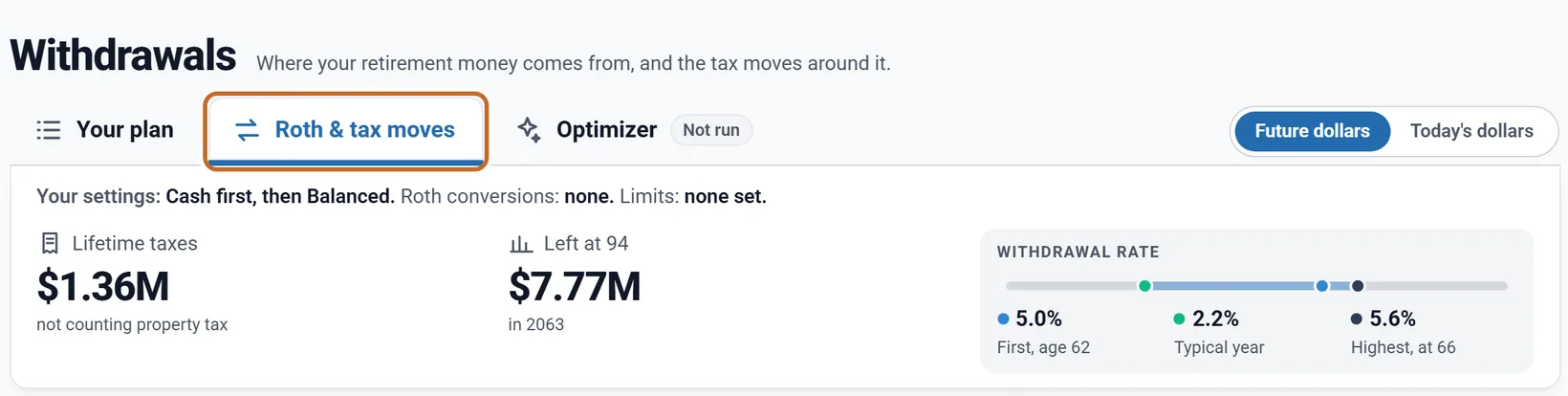
The Your settings line under the three names says what your plan sets: how your money is drawn, your Roth conversions and your limits. The overview under it is the same on every page of the tab. Its figures (Lifetime taxes, what is left at the end, and the three withdrawal rates under Withdrawal rate) follow each change you make, with a small note in words beside each figure that moved, the line Changes are since you opened Withdrawals. and the link Undo my changes, which puts your plan back as it was when you opened the tab. See Where your spending money comes from for the overview in full.
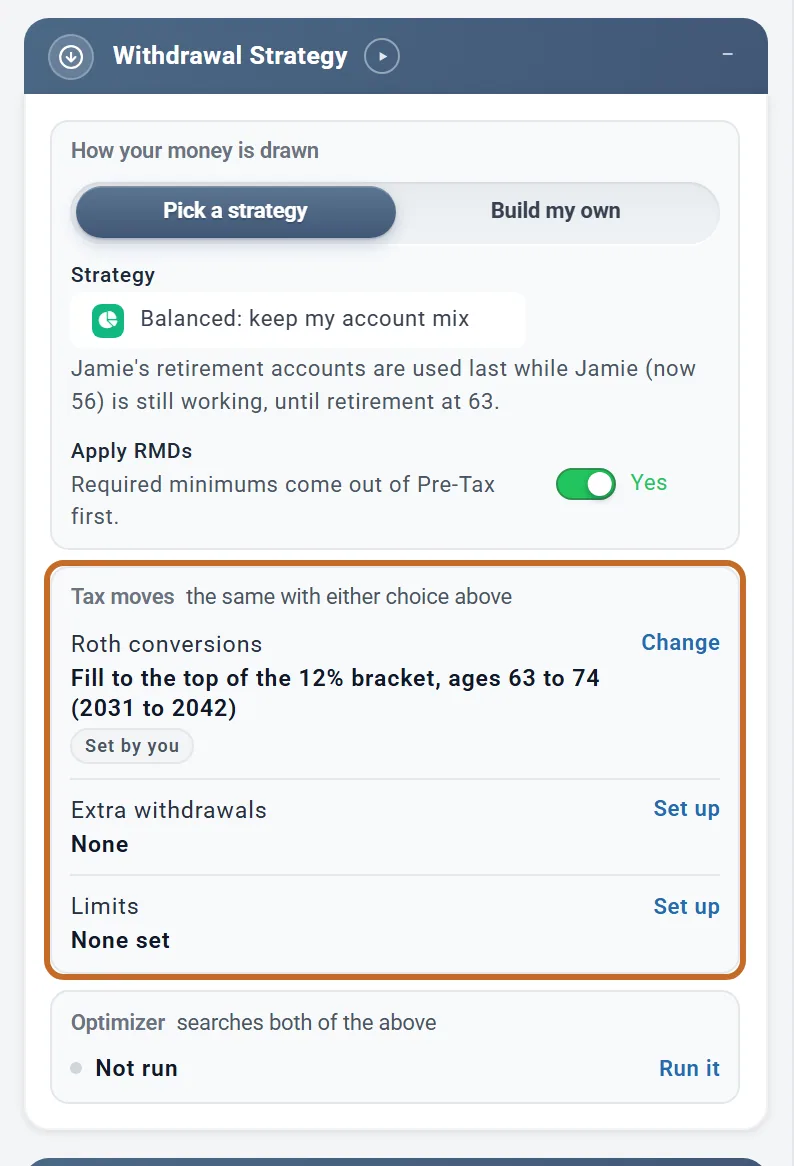
While no tax move is on, the page opens with New to Roth conversions?: three steps (1. Move, 2. Pay tax now, 3. Tax-free later), then the Roth conversions card, then Your tax moves, which has nothing to compare yet. Got it, hide this hides the three steps for good; after that they open from the ? beside the card's title. The cards keep the same order whether a tax move is on or not, so turning one on never moves the card you clicked. Top to bottom:
- Roth conversions, one card. The switch beside its title turns conversions on or off. Under the title, choose the kind: Fixed amount, Fill to the limit or Year by year. Beside the kinds, PAY THE TAX FROM sets how the conversion tax is paid. The "?" beside the title opens How Roth Conversions Work. The rest of the card belongs to the kind you chose: one line saying how much converts, its controls on the left and, on the right, three figures over the page's charts, one tab each.
- Your tax moves: one sentence that says what your moves do, your moves in words (each one a link to its control on the page), and the figures behind the sentence. It is the page's one results summary.
- Your limits: income lines you set for the plan, with what they do to the moves you have now and the list of years held back.
- Extra Pre-Tax withdrawals: the second tax move, with a small chart of what it draws each year.
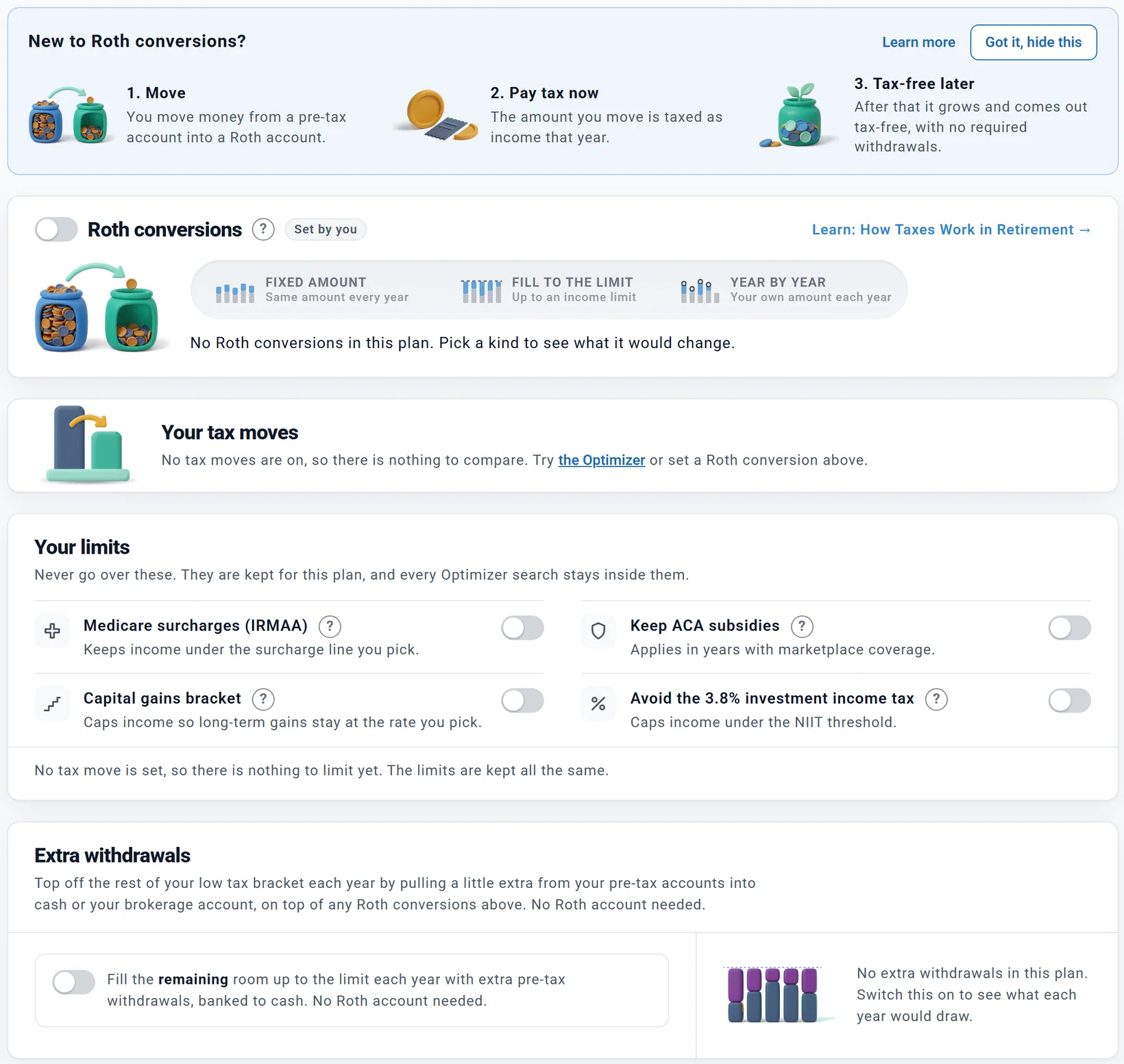
- The status beside the title says who made the settings: Set by you, or after you use an Optimizer result "From the Optimizer" with the date, or From the Optimizer, edited by you once you change them (see If the Optimizer set it up).
- The settings panel shows the same thing. The Withdrawal Strategy box has a section Tax moves, "the same with either choice above", with three rows: Roth conversions, Extra Pre-Tax withdrawals and Limits. Each says what your plan does in a few words (for Chris and Jamie "Fill to the top of the 12% bracket, ages 63 to 74 (2031 to 2042)"), and its link, Change or Set up, opens this page. There is no separate Roth Conversions box, and nothing to switch on in Add first.
- On Withdrawal order, the Tax moves card says the same in a sentence and links here too (see Tax moves come first).
- It saves as you go. Buttons, switches and dropdowns take effect when you click them, sliders when you let go. There is no Apply or Save button on this page, and opening it changes nothing.
- To stop converting, turn off the switch beside Roth conversions. The card then reads "No Roth conversions in this plan. Pick a kind to see what it would change." Your limits stay as you set them. Click a kind to convert again, or turn the switch back on to return to the kind you used last on this visit.
Your limits: lines your tax moves never cross
Your limits follows the Roth conversions card, whatever move is set. A limit is an income line you set for the plan. What it does depends on your tax moves (see the table below): the card's first line says it for the moves you have now, and ends "The limits are kept for this plan, and every Optimizer search stays inside them." All four are off to start; each has a "?" with the details.
While no limit is on, the card rests as one line, "Your limits: none set.", with Change. Click Change or the title to see the four switches. Once a limit is on the card always shows in full. A link to your limits from the Withdrawal Strategy box or the Optimizer opens the card for you.
- Medicare surcharges (IRMAA), with a tier you pick: "Keeps income under the surcharge line you pick." It acts from the year the Primary turns 63 (the two-year look-back to 65). The list shows today's lines for your filing status, for example "Below the 1st surcharge (under $218k)" for a married couple; the plan raises them with inflation.
- Keep ACA subsidies: "Applies in years with marketplace coverage." It stops about 2% below the subsidy limit in those years. If your Health Care box has marketplace coverage, the row says that every Optimizer search keeps the subsidy already; switch it on to hold the moves you set by hand to it too. The row is not listed when no year of your plan falls before 65.
- Capital gains bracket (0% rate or 15% rate): "Caps income so long-term gains stay at the rate you pick." It acts only in years with long-term gains or qualified dividends.
- Avoid the 3.8% investment income tax: "Caps income under the NIIT threshold" ($200,000 single, $250,000 joint; these never rise with inflation). It acts only in years with investment income.
What "kept for this plan" means:
- A limit is part of the plan, not of one move. It stays on when you change from one kind of conversion to another, when you switch conversions off, and when no tax move is set at all (the card then says "No tax move is set, so there is nothing to limit yet. The limits are kept all the same.").
- The Optimizer works inside them. Every option a search tries carries your limits, and using a result never switches one off (see If the Optimizer set it up).
- Each saved plan has its own. A limit you set here is not set in your other plans.
- When several apply in a year, the lowest line wins.
- They only limit what a tax move adds. If your other income already crosses a line, the move adds nothing that year; a limit never lowers income you already have.
- A row that is switched on always shows, so you can switch it off. The Medicare row is not listed while it is off and FILL UP TO already aims at an IRMAA threshold, and the ACA row while it is off and the fill already aims at the ACA limit.
The line under the title says what the limits do to the moves you have now:
| Your tax move | What a limit does |
|---|---|
| Fill to the limit, or extra Pre-Tax withdrawals alone | The fill stops at the lowest limit. "A year can still end a little over when its income turns out higher than the January estimate." |
| No tax move | "No tax move is set, so there is nothing to limit yet." The limits are kept all the same. |
| Fixed amount or Year by year, extra withdrawals off | The amount is held back in a year that would otherwise go over a limit: "that year converts less than planned, or nothing." See Years held back. |
| Fixed amount or Year by year, extra withdrawals on | The amount is held back in the same way, and the withdrawals get only the room left after it: "Your extra Pre-Tax withdrawals get only the room left under the limit after it." See below. |
Years held back
When a limit holds back a fixed amount or a year's own amount, the card says what happens first. If some years convert less, it reads "In 3 of your 10 conversion years a full $7,000 would push your income over your Medicare surcharge limit, so the plan converts less", with what those years convert. If every planned year is held to $0, it reads "Your Roth conversions don't happen" and says why. A table lists the years: YEAR, AGE, PLANNED, CONVERTED, HELD BACK and LIMIT THAT HELD IT. A limit that held something back also says so under its switch, such as "Held back your conversions in 5 years ($35,000)". The figures are what the plan converted, in each year's own dollars.
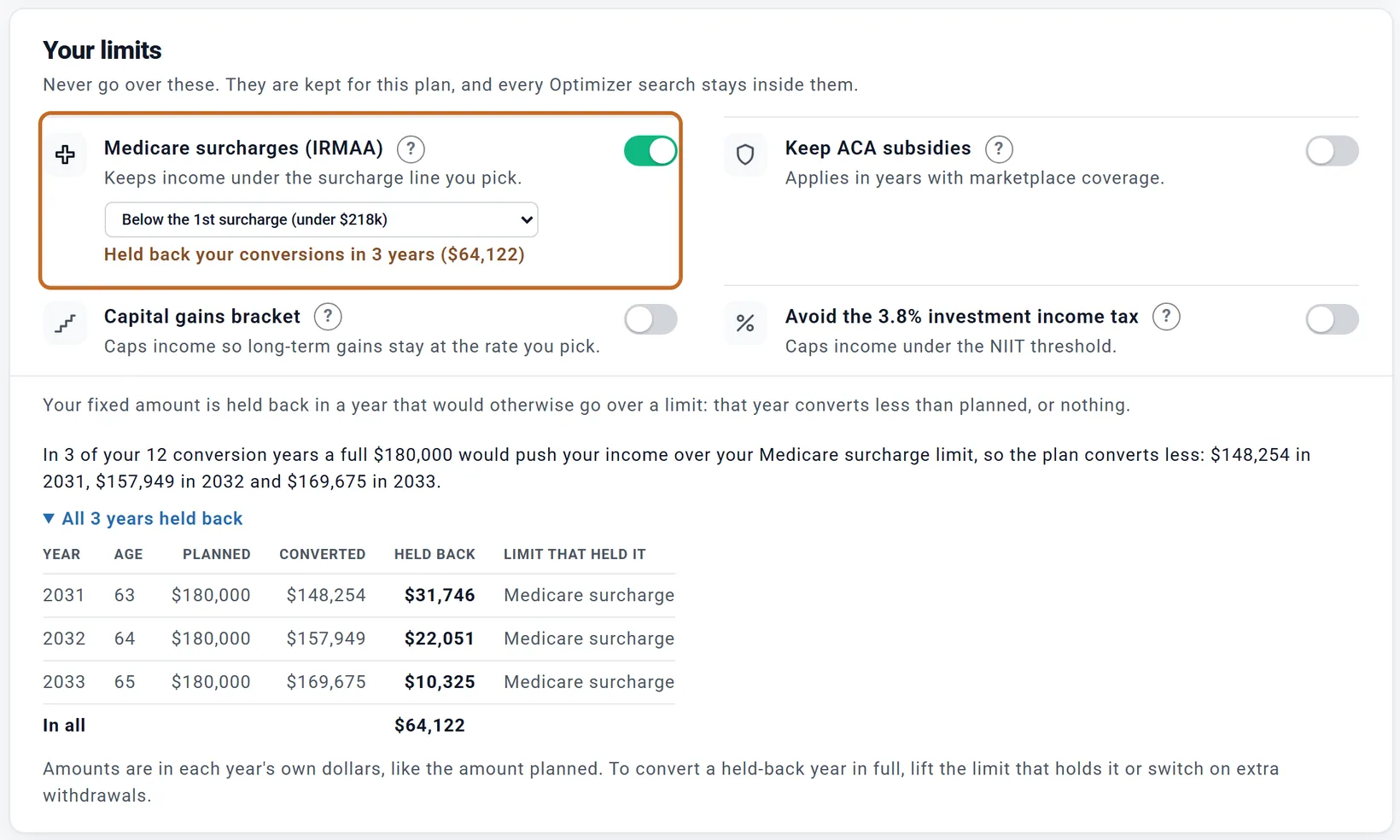
Chris and Jamie try $180,000 a year with Medicare surcharges (IRMAA) on. The years they turn 63, 64 and 65 convert $148,254, $157,949 and $169,675, which keeps each year's income under the first surcharge line. From 66 the full $180,000 fits.
- A year that converts less only because the pre-tax money has run out is not called held back, and is not in the table.
- When every amount fits, the card says "Nothing is held back: every amount fits inside your limits."
- The list is drawn from your plan's latest calculation, so it appears a moment after a change.
- To convert a held-back year in full, lift the limit that holds it.
A set amount beside extra Pre-Tax withdrawals
With extra Pre-Tax withdrawals also on, a Fixed amount or Year by year amount is held back by your limits in the same years as with them off. The conversion goes first; the extra withdrawals fill only the room left under the limit after it, so in a year the conversion is held back they add nothing. The amount held back can differ a little from the same plan without extra withdrawals, because the extra withdrawals change what the plan expects to draw that year.
An older plan whose conversions fill a target of their own is the one case the limits do not cover. The card says so, with Manage them here, which puts them under your limits (see Fill up to an income limit).
Convert the same amount each year
- In the Roth conversions card choose Fixed amount (1). That turns conversions on, and PAY THE TAX FROM appears beside the kinds (2, see Paying the tax).
- Drag CONVERT EACH YEAR, or click the figure and type an amount. It moves in $1,000 steps (a typed amount goes to the nearest $1,000) and starts at $50,000 the first time.
- Under CONVERSION WINDOW, set Start age and End age (drag, or click an age and type it). The label beside it names the years that will convert, and the line under it adds up your plan as typed, for example "8 conversions, $480,000 in all before tax". When a year converts less than that, the line at the top of the card says so.

Chris and Jamie's first try: $50,000 a year, Start age 62 and End age 74. The label reads "Ages 63 to 74 (2031 to 2042)": Chris's first conversion is the January of the year Chris turns 63 (see Which years convert).
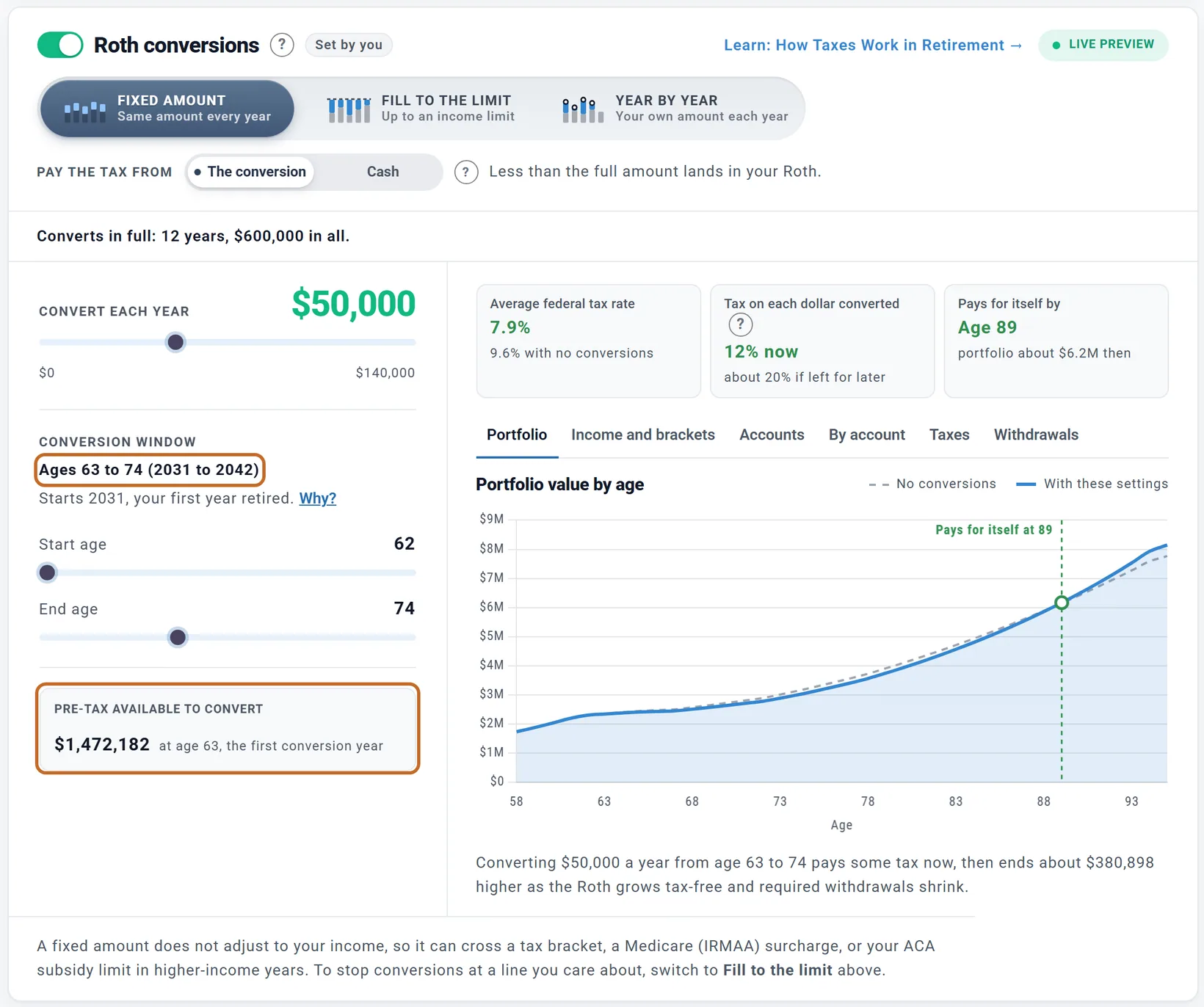
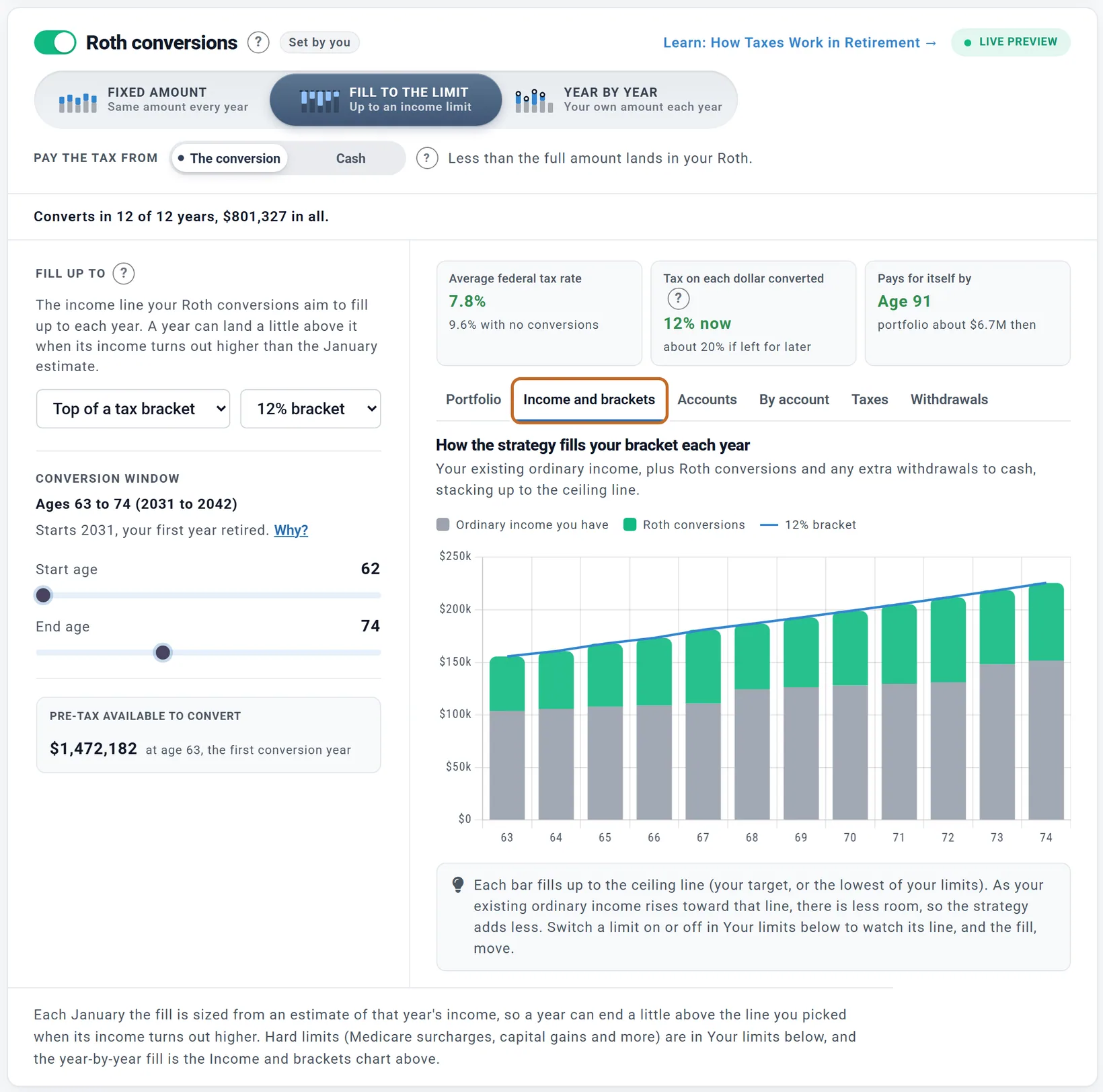
One line under the kinds says what converts, for example "Converts in 5 of 10 years, $35,000 of $70,000 planned. Your ACA subsidy limit holds it back in the other 5.", with a link to the years held back. When every planned year is held to $0 it says your Roth conversions don't happen, and why. Under the sliders: PRE-TAX AVAILABLE TO CONVERT (the pre-tax money in the first conversion year). The chart that opens, Portfolio, compares your plan with no conversions and with these settings, and follows the sliders as you move them. The tabs beside it hold the page's other charts (see The charts); while a limit holds conversions back, Income and brackets opens first, because it shows why. Lifetime taxes, what is left at the end and the Medicare surcharge years are in Your tax moves, the card right under this one, once, not on this card.
Above the chart tabs, whichever is open, three figures follow the sliders as you move them: Average federal tax rate (lifetime federal tax divided by lifetime income, with the rate with no conversions under it), Tax on each dollar converted (for example "12% now, about 22% if left for later": the federal bracket your conversions fall in, beside the bracket your pre-tax money falls in after those years with no conversions, each weighted by its dollars; its "?" explains that this is your marginal rate, the bracket alone, without state tax, more Social Security being taxed or IRMAA) and Pays for itself by: the age from which the portfolio with conversions stays above the portfolio without, and what it is worth then (this is the break-even age). The Portfolio chart marks that age, "Pays for itself at" and the age. Conversions pay their tax up front, so the line with conversions usually starts below and can take many years to catch up. When the money runs out with or without the conversions, the tile reads "No payback age" and gives the age the money runs out.
- The same dollars every year. A fixed amount does not grow with inflation. (The lines in Fill to the limit do.)
- Never more than you have. A conversion is never larger than the pre-tax money left that year. When the amount cannot convert in full, an amber note says so. The slider's top end grows with your pre-tax money and with the amount you set.
- It does not watch your income. A fixed amount can cross a tax bracket, an IRMAA line or the ACA subsidy limit in a year when other income is high. To stop at a line, use Fill to the limit, or switch on one of your limits, which trims the amount in the years that would cross it.

Fill up to an income limit
Instead of a set amount, convert just enough each year to bring your income up to a line you choose: the top of a tax bracket, for example. This line is a target, the place the fill aims for. It is not one of your limits, which only ever hold a move back.
- In the Roth conversions card choose Fill to the limit. The card shows the controls of a fill.
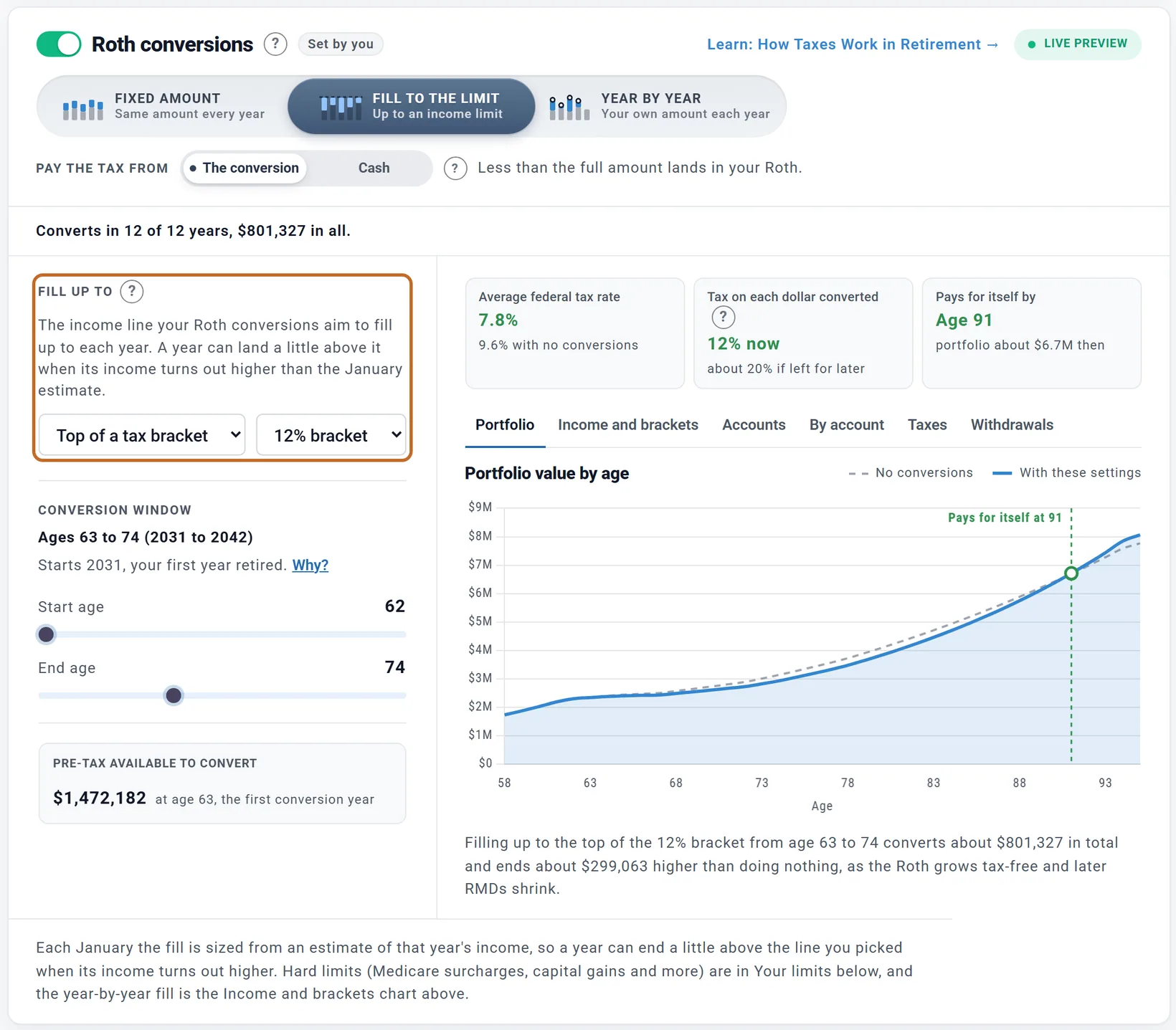
- Under FILL UP TO pick the line. The first time, it is the top of the 12% bracket.
- Set the CONVERSION WINDOW as for a fixed amount.
| FILL UP TO | What it fills to |
|---|---|
| Top of a tax bracket | The top of the 10% bracket, 12% bracket, 22% bracket or 24% bracket. The line is on your income before deductions: the top of the bracket plus your standard deduction (with the extra amount from 65). |
| IRMAA threshold | Below 1st surcharge, or Stay in tier 1 to Stay in tier 4: the income line for a Medicare surcharge tier. |
| ACA subsidy limit | Listed when some years of your plan fall before 65. A percent of the poverty level (400 to start) for your household size from the Health Care box; the fill aims about 2% under it. It fills only in years when someone in your household has marketplace coverage, which ends with Medicare: later years of the window convert nothing, and a note under the window says which. To keep converting after Medicare, choose another target. |
| Custom AGI amount | An amount you type, in today's dollars ($100,000 to start). |
How it works:
- Each January the plan estimates that year's other income (Social Security, pensions, rent, RMDs, the withdrawals your spending needs, interest and dividends) and converts the room left under the line. If your other income already reaches the line, that year converts nothing.
- Every line rises each year with your plan's inflation, so it stays realistic over a long plan.
- The line is an aim, not a wall. Because the room is planned from the January estimate, a year's final income can land a little either side of the line, for example when the year's withdrawals turn out larger than estimated.
- Your limits come first. In a year when one of your limits is lower than the line you picked, the fill stops at the limit.
For Chris and Jamie, filling the 12% bracket from 63 to 74 converts $801,327: $51,812 the first year, rising to $80,680 at 72 as the line rises with inflation.
An older plan whose conversions fill a limit of their own shows "These conversions fill their own income limit" instead, with Manage these conversions here, which brings them onto this card and under your limits.
Set each year on its own (Year by year)
When you want a different amount in different years (more before Social Security starts, nothing in a year with a big one-time income, up to the 22% line in some years and the 24% line in others), set each year yourself on a chart of your income.
- In the Roth conversions card choose Year by year. The card shows a chart of your income, one bar for each year. The "?" beside the line over the chart says how to read it.
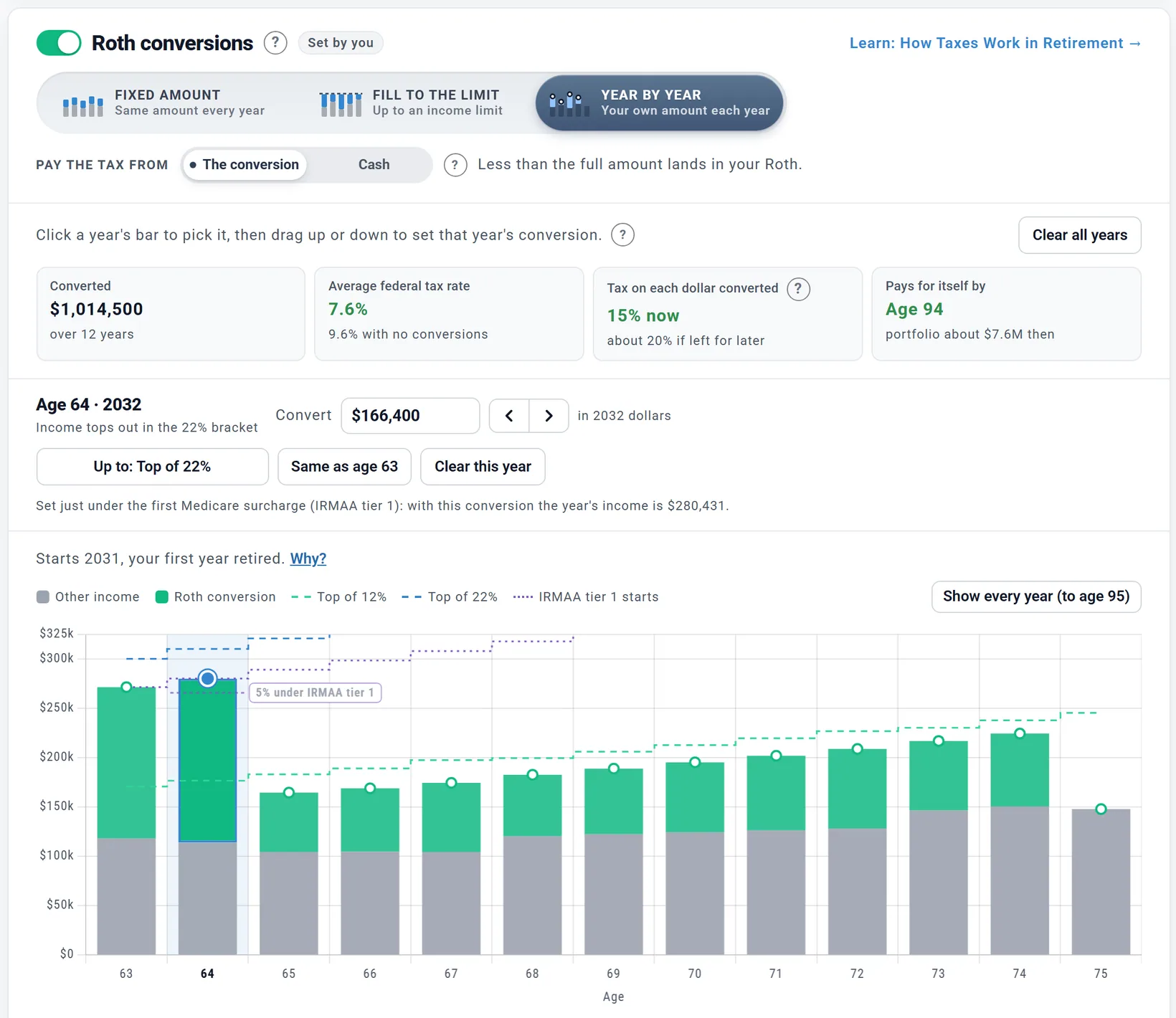
- Each year is a bar: its income as the tax return counts it (MAGI, the figure the AGI Tracker shows and Medicare's IRMAA is set on). Green is that year's conversion (Roth conversion), gray is everything else (Other income). The dashed lines are the tops of the tax brackets (Top of 12%, Top of 22% and up); the dotted lines are where the Medicare (IRMAA) surcharges start (IRMAA tier 1 starts).
- Click a year's bar to pick it (a click never changes it), then drag up or down to set that year's conversion. You can grab it anywhere in its column: pressed on the top of the bar, the top follows the pointer; pressed lower down, the top moves by as much as you drag, so you never have to hit the dot. Near a line it snaps to it. When you let go, the plan recalculates and the rest of the page follows.
Chris and Jamie chose Year by year after filling to the top of the 12% bracket, so each year started at that fill ($51,800 at 63, the fill rounded to $100). Then, earliest year first, choosing IRMAA tier 1 starts beside Fill this year up to at 63 and again at 64 set those years just under the first IRMAA line: $153,400 and $166,400, which bring the two years' income to $271,747 and $280,431, against lines of $271,778 and $280,475. Your tax moves at the top of the page shows what that does: $353,015 less lifetime tax than no conversions, more than the 12% fill saves, but an ending portfolio only $73,677 above no conversions, and Pays for itself by on the card reads "Age 94" (see Less tax is not always more money).
- It starts from your plan. The first time you choose it, each year starts with what your plan converts now: switching from Fill to the limit gives you that fill, year by year, to adjust. Your years are kept if you switch to another choice and back.
- The year you picked. Click a bar, use the ‹ and › buttons beside Convert, or the Left and Right arrow keys, to pick a year. It is shaded on the chart, with a filled blue dot and its age in bold. The row above the chart shows it: type an amount in Convert (in that year's own dollars), choose a line beside Fill this year up to, use the same amount as the year before, or Clear this year. To set several years in a row, type an amount and press ›: the amount is kept for that year and the next one is ready to type into. Clicking the gray part of the year you picked clears it to $0. Clear all years removes every year. With the chart focused, Up and Down change the year by $1,000 (Shift: $10,000), and Page Up and Page Down move it just under the next line.
- Fill this year up to. The list beside the year you picked names every line that year has, lowest first, each with its amount for that year: the tops of the tax brackets, where the Medicare (IRMAA) surcharges start, and the cushion under each. Choose one and the plan works out the conversion that keeps the year just under it. A line lower than the bar brings the bar down. A line the year's other income is already over is in the list but cannot be chosen. The list shows the line the year sits on, or Choose a line when it is on none.
- Every year at once. Fill every year up to, beside Clear all years, sets every year on the chart to one line. It offers the lines Fill to the limit offers. The plan starts from what that fill would convert each year, then checks each year against its line on the chart, earliest year first, and sets it just under the line. A year whose income is already over the line converts nothing. If you have set some years yourself it asks first: Fill every year, Keep mine and fill the rest or Cancel. You stay in Year by year, so you can change any bar afterwards, and Clear all years takes it all back.
- The height of the chart. The chart is as tall as your tallest year, with room for the next line above the year you picked. A line that is above the chart for other years comes into view when you pick one of them, and a bar can be dragged past the top: the chart grows to fit it when you let go.
- A cushion under each IRMAA line. On the year you picked, a faint dash sits 5% under each IRMAA line (5% under IRMAA tier 1): the income that keeps that year at 95% of where the surcharge starts, so a little extra income (a larger dividend, a capital gain you did not plan) does not tip it over. It works like a line: the bar snaps to it, it is in the Fill this year up to list, Page Up and Page Down stop at it, and the plan works out the amount that keeps the year at or just under it.
- Just under a line, for real. Converting adds more than the conversion to a year's income: paying its tax from savings can mean drawing more from pre-tax accounts, and more of your Social Security can become taxable. So when you let go of a bar on a line, or choose one from a list, the plan works out the amount that keeps that year at or just under the line once everything is counted, and the row says what the year's income comes to.
- Work from the earliest year. A conversion can raise the years after it too (the savings that paid its tax are not there for later spending, so later years can draw more from pre-tax accounts), never the years before. Setting years from the first one forward means each year you set stays where you put it.
- Never more than you have. A year can convert at most the pre-tax money there is that January. If you set more, the row says how much converts.
- Capital gains are in the bar. They stack on top of ordinary income, so each bracket line sits above that bracket's top by the capital gains and dividends that year has, and it counts the senior deduction. So a year that sells more from a brokerage account has higher lines than the years beside it: hover the year and the tooltip shows its gains. A year sent up to a bracket line is worked out on the plan as it stands, so it can end a little to either side.
- The years that matter most. The chart shows the years up to the first one with a required minimum distribution, and any year with a conversion; Show every year shows the rest.
- What your years change. At the top of the card, CONVERTED and the same figures as the other cards (Average federal tax rate, Tax on each dollar converted, Pays for itself by), with a line above them when a year converts less than you set; under the bars, Medicare surcharges by the year you pay them and then the chart tabs, Portfolio (Portfolio value by age) first, each with and without your years. They update each time the plan recalculates.
- Medicare surcharges by the year you pay them. A bar for each year from when Medicare starts: the IRMAA surcharges your household pays that year with your years (filled, darker for a higher tier) and with no conversions (outlined). The line above it counts the years with a surcharge, the highest tier, and the two totals. A surcharge is set on your income two years earlier, so a premium paid in 2033 comes from your 2031 income: point at a bar to see which year, and click it to pick that income year in the chart above. It follows the Future dollars / Today's dollars choice. Learn: IRMAA and Medicare Surcharges opens the Learning Library article.
- IRMAA lines only where they count. A year's income sets your Medicare premiums two years later, so the IRMAA lines show only for years that are close enough to Medicare.
- Today's dollars. The chart follows the Future dollars / Today's dollars choice on the overview at the top of the tab. What you set is always in each year's own dollars (what the plan converts that January).
- Your limits still apply. A year whose amount would cross one of your limits is held back, as a fixed amount is, and the limits card lists it (see Years held back). Extra Pre-Tax withdrawals can fill the room above your conversions.
Which years convert
The years that convert are not always the ages you set. In detail:
- Once a year, in January. Each conversion is made in January and counted as income through that calendar year (one twelfth a month), and taxed in that year.
- An age means the calendar year you turn it. Start age 63 converts in the January of the year you turn 63, whatever your birthday month.
- The Primary's ages. The window runs on the Primary's ages (Chris's here), even for money in the spouse's accounts. There is no window on the spouse's ages.
- Not before retirement, unless Employment Income is on. Conversions start in the first January at or after the Primary's retirement month. Chris retires in June 2030, the year Chris turns 62; that January is before the retirement, so the first conversion is January 2031, the year Chris turns 63. That is why Start age 62 shows "Ages 63 to 74". The card says so in one line, "Starts 2031, your first year retired", and its Why? link gives the reason for your plan: "In this plan the first year that can convert is 2031, the first January after you retire. The plan does not count your pay in 2027 to 2030, so it does not convert in those years. To include them, turn on Employment Income so the plan counts your pay."
- Not in your plan's first calendar year unless the plan starts in January: that year's January has gone by. Start age cannot be set to an age whose January is past.
The label next to CONVERSION WINDOW and the card's line about what converts count only the years that convert, so go by them, not the Start age slider.
- With Employment Income on (for either of you), the working years open: Start age can go down to the first age with a January left in the plan, and a fill counts the salary.
- The first window. The first time you choose a mode, the window runs from your retirement age (at least 60) to the year before your RMDs begin (at most 75): 62 to 74 for Chris.
Which accounts convert
- The pre-tax accounts of both of you convert, split in proportion to each person's pre-tax money. Each person's share lands in their own Roth.
- You cannot pick one account to convert from. To keep an account out, set its Availability to Never available for withdrawals: those accounts are never converted. (Locked until an age does not keep it out.)
- Inherited IRAs are never converted. An IRA paying 72(t) payments is not converted while they run, and a TIPS ladder's account is not converted through its last rung.
Paying the tax: from the conversion or from cash
Once conversions are on, PAY THE TAX FROM offers two choices beside the kinds. One line beside them says what the choice does ("Less than the full amount lands in your Roth." or "The full amount lands in your Roth."), and the "?" has the details.
The conversion (the default)
"The tax comes out of the converted dollars, so less than the full amount lands in your Roth." What is held back is the planner's estimate of the federal tax on the conversion:
- For Fixed amount, a flat share of the conversion: 12% unless your plan stored another rate.
- For Fill to the limit, the extra federal tax the conversion causes.
The year's real federal and state tax is then worked out with the conversion in your income, and any difference, state tax included, is paid the way your other taxes are: from your withdrawals.
Chris and Jamie's $50,000 in 2031: $6,000 is held back and $44,000 reaches their Roth. The rest of what the conversion adds to that year's federal and California tax comes from their withdrawals.
Cash

- The full amount moves to your Roth. The tax is taken from your cash in the conversion January, as much as cash can pay without going below your minimum balances. The rest is paid the way your other taxes are.
- The conversion itself is never made smaller to fit your cash.
- A note under the choice says which conversion years cash covers in full, in part or not at all, by age and year: for Chris and Jamie, part of the tax in 2031, 2032, 2035 and 2037, none in the other years.
- Cash pays this tax even when your plan holds cash in reserve (see When your cash gets spent).
Chris and Jamie spend most of their cash in their first year of retirement, so cash pays only $1,533 of 2031's tax and almost nothing after. The full $50,000 still reaches their Roth each year, and their ending portfolio is $390,335 above no conversions instead of $380,898.
The Optimizer also tries the other choice on the option it finds, and tells you if it does better (see The Optimizer).
Bracket filling with extra Pre-Tax withdrawals
The second tax move needs no Roth account: take a little extra from your pre-tax accounts each year, pay its tax at the low rate, and keep the money. The card is Extra Pre-Tax withdrawals (bracket filling).
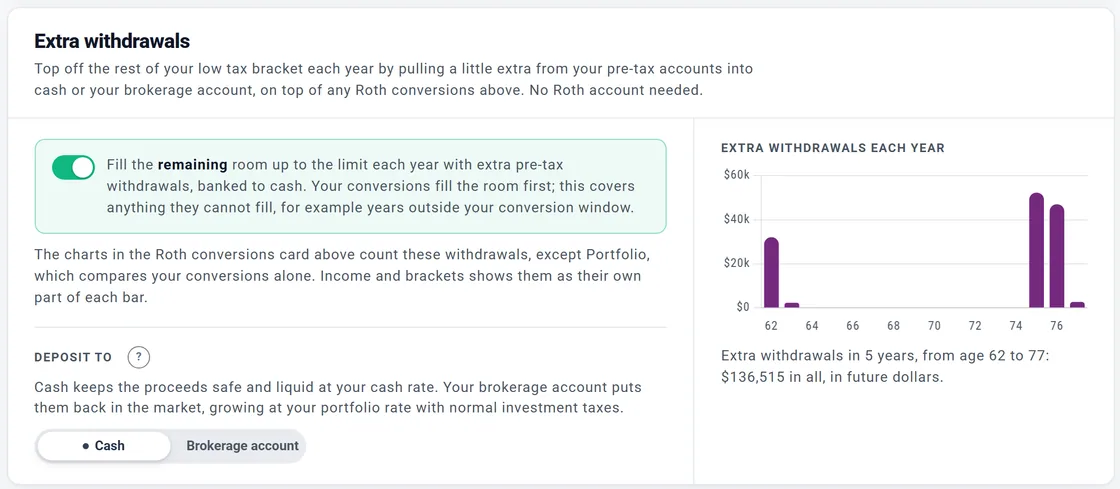
- Its switch fills "the remaining room up to the limit each year". With Fill to the limit, your conversions fill the room first and this covers the rest, for example the years outside your conversion window. With Fixed amount, Year by year or conversions off, the card gets its own FILL UP TO once it is on.
- The explanations of FILL UP TO and DEPOSIT TO are behind the ? beside each label. Under FILL UP TO the card prints one line only when it applies to your plan: with a fixed or year-by-year conversion on, "Your fixed Roth conversion of $25,000 a year is separate: in your retirement years it is not capped by this target, only by your limits."
- DEPOSIT TO: Cash, or Brokerage account to keep the money invested. In a spending mode other than Monthly Expenses there is no choice: the after-tax dollars go to your brokerage account. With Monthly Income, they first put back any cash your spending used that month. A brokerage account you marked as not available gets nothing while it is locked: the money goes to your next brokerage account, or stays in cash.
- With Monthly Expenses or Monthly Income, choosing Invest it in a brokerage account takes the cash away too: the card shows no choice, and what the extra adds to cash above your safety net goes to the account you picked, even one you marked as not available.
- At the right of the card, EXTRA PRE-TAX WITHDRAWALS EACH YEAR: one bar for each year, the extra the plan draws from pre-tax that year compared with the same plan without the fill, and a line with the years and the total. It follows the Future dollars / Today's dollars choice. With the switch off the card says so in one line. Under the switch, a line says that the charts in the Roth conversions card count these withdrawals.
- With Roth conversions off and this switch on, the page's charts are in this card instead: the switch and its settings on the left, the chart tabs on the right. The first tab, Each year, is the same chart of what each year draws, drawn larger.
- They run in retirement years only, even with Employment Income on.
- They fill about 95% of the room, and skip a year when the fill would be under $100 a month.
- They stop at the lowest of your limits.
- With Monthly Expenses, the plan does not spend cash first in the months they fill a bracket. With Monthly Income, income and cash still pay first and they come on top (see Tax moves come first).
- If no year has room left, the card says so: your income already reaches the limit.
A plan with no Roth account
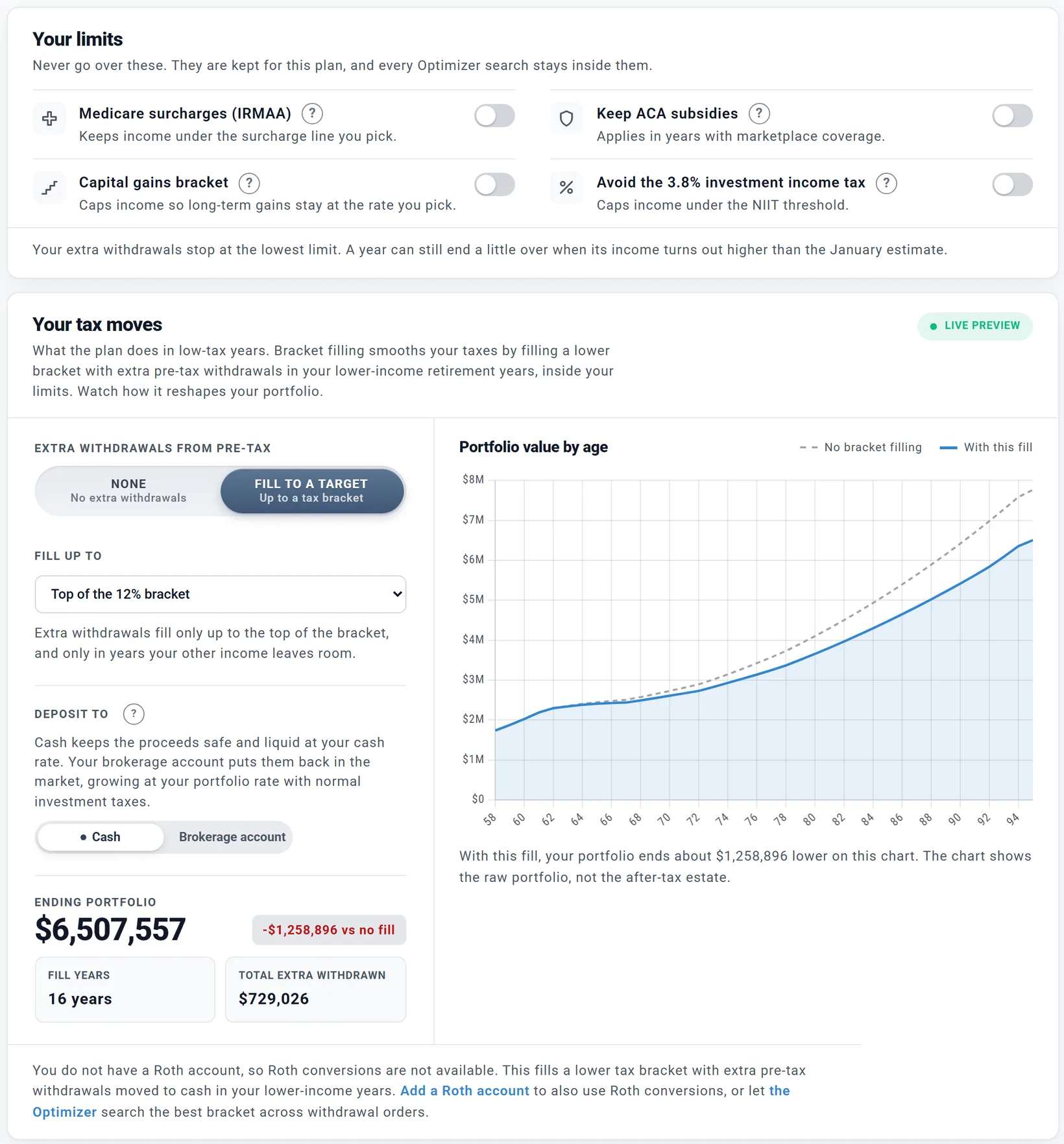
A US plan with no Roth account (a Roth IRA, Roth 401(k) or Roth 403(b), even at a $0 balance; an inherited Roth IRA or an HSA does not count) names the page Tax moves. It has the same Your limits card and the same What these moves do, and one card between them, Your tax moves:
- EXTRA WITHDRAWALS FROM PRE-TAX: None or Fill to a target.
- FILL UP TO: the top of the 12%, 22% or 24% bracket, in every lower-income retirement year. "Extra Pre-Tax withdrawals fill only up to the top of the bracket, and only in years your other income leaves room."
- DEPOSIT TO, ENDING PORTFOLIO against no fill, FILL YEARS and TOTAL EXTRA WITHDRAWN, and a chart with and without the fill.
- Your limits hold the fill, and stay on when you change the bracket or choose None.
- Add a Roth account at the foot of the card takes you to Accounts & Assets; with a Roth account the page becomes Roth & tax moves and conversions are offered too.
Your tax moves: see what they are worth
With and without your tax moves
Your tax moves sits right under the Roth conversions card (it was called What these moves do and sat lower down; on a plan with no Roth account it keeps that name and its older layout, with the four results always open). It starts with one sentence that says the answer, for example "These moves cut your lifetime taxes by about $29,000 and leave about $41,000 more at 94." When one figure is better and the other worse, the sentence says both, joined by "but". Under it are your moves in words, for example "Roth conversions of $7,000 a year, ages 62 to 71 (2030 to 2039) (held back in 5 years by your ACA subsidy limit). No extra Pre-Tax withdrawals. Set by you". With both moves on they are numbered in the order the plan applies them each year: "1. Roth conversions of ..." then "2. Extra Pre-Tax withdrawals that fill the room left after the conversions, up to ...". That order is why extra withdrawals can happen in fewer years than conversions. Click a move to go to its control; click the held-back words to open the years held back. Then a line beginning "Also:" gives the change in required withdrawals and in Medicare surcharge years, and See all four figures opens the four results. They stay open, or closed, as you leave them until you leave the app.
The comparison is with the same plan with these moves turned off (no Roth conversions and no extra withdrawals). Your withdrawal order, spending and everything else stay as they are. The words beside the title say so in short, "compared with these moves off", with the dollars; the ? beside the title says it in full. The charts in the Roth conversions card compare something narrower: its Portfolio chart and its three figures set the plan against the same plan with no Roth conversions. With extra Pre-Tax withdrawals on, a line under each such chart says what its two lines hold, for example "Both lines include your extra Pre-Tax withdrawals. Only the Roth conversions differ." With the four results open:
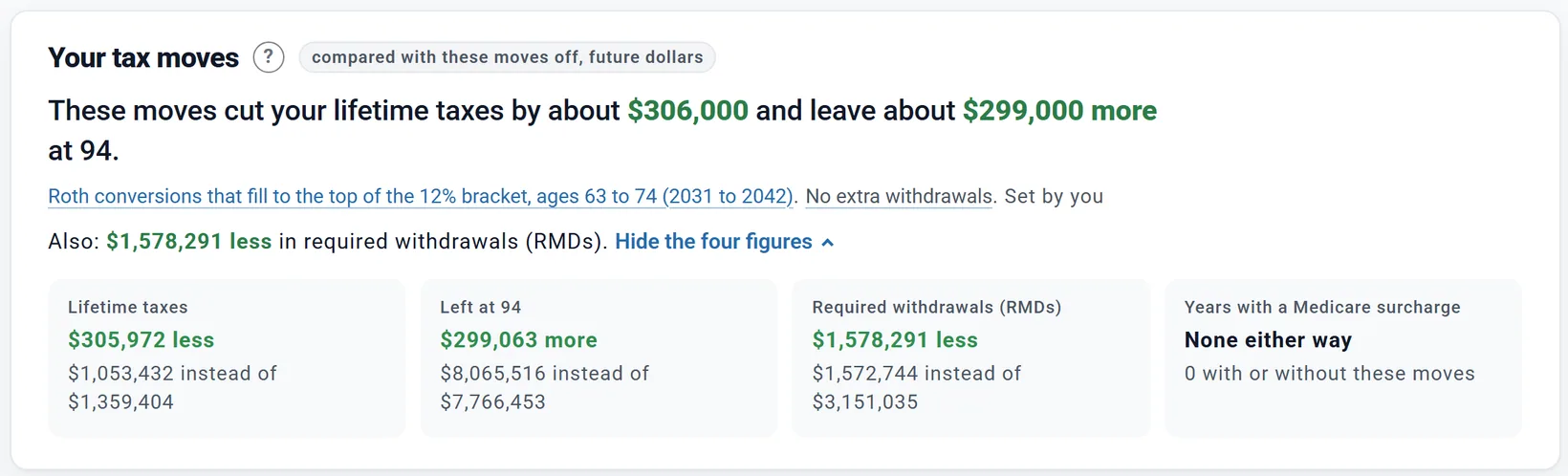
- Lifetime taxes: every tax the plan pays, not counting property tax. It is the figure on the overview at the top of the tab.
- "Left at" your plan's last age: the portfolio at the end, also the overview's figure. If the money runs out with or without the moves, the row says at what age.
- Required withdrawals (RMDs): the RMDs the plan takes over your lifetime.
- Years with a Medicare surcharge: how many years pay an IRMAA surcharge.
- Each result says "less" or "more", with both figures under it ("$1,053,432 instead of $1,359,404": with your moves, instead of without them). Green is better for you, orange is worse.
- When the balance and the after-tax money disagree. The balance at the end counts a pre-tax dollar like a Roth dollar, although the pre-tax dollar still owes income tax. When the after-tax figure points the other way, the row is not coloured and adds "After the income tax still owed on Pre-Tax money", with that difference.
- It follows the Future dollars / Today's dollars choice on the overview and says which it is. While a change recalculates, the last figures stay, dimmed, until the new ones land.
- With no tax move on, the card sits under the Roth conversions card and says "No tax moves are on, so there is nothing to compare. Try the Optimizer or set a Roth conversion above." The words the Optimizer open the Optimizer.
The charts, and the card under the page
The charts live in the tax move that is on. With Roth conversions on, they are in the Roth conversions card, beside its controls and under its three figures, so you see what a conversion does without scrolling. With conversions off and extra Pre-Tax withdrawals on, they are in that card, beside its switch. Click a tab to open its chart; the tab you pick stays open while you change things, and it moves with the charts when you switch a move on or off.
| Tab | What it shows |
|---|---|
| Portfolio | Portfolio value by age: your plan with these conversions and with none. It opens first and moves with the sliders. The age it marks ("Pays for itself at") counts pre-tax money in full, before the income tax still owed on it; counting that tax, as AFTER-TAX ESTATE below does, conversions pay for themselves sooner. |
| Income and brackets | Each year's ordinary income with the conversion on top (and any extra Pre-Tax withdrawals), against the tax-bracket lines and your limits. It opens first while a limit holds conversions back. |
| Accounts | Your pre-tax, Roth and taxable balances over time, and the pre-tax balance without the moves. Click a name in the legend to hide it. |
| By account | Your portfolio stacked account by account. |
| Taxes | Taxes each year, with and without the moves. |
| Withdrawals | Each year's withdrawals by where the money came from (cash, pre-tax, tax-free, taxable and your HSA), the same figures as the Dashboard's Withdrawals chart. Your Roth conversions sit on top: they move money to your Roth, so they are not spending and are in no total. A conversion belongs to a calendar year, so by age each one is shown whole at the age you reach that year. |
- The five charts after Portfolio show your plan as it stands, so they change when you let go of a slider, not while you drag it.
- Year by year has the same tabs under its bars, without Income and brackets: its bars are that chart.
- With conversions off, the card has no chart. If extra Pre-Tax withdrawals are on, the tabs are inside that card, to the right of its switch: Each year first (what the extra withdrawals draw each year, open to begin with), then Income and brackets, Accounts, By account, Taxes and Withdrawals, and last Portfolio, which there compares your plan with and without the extra Pre-Tax withdrawals. With both moves off the page has no charts.
Then one card with the two figures Your tax moves does not carry:
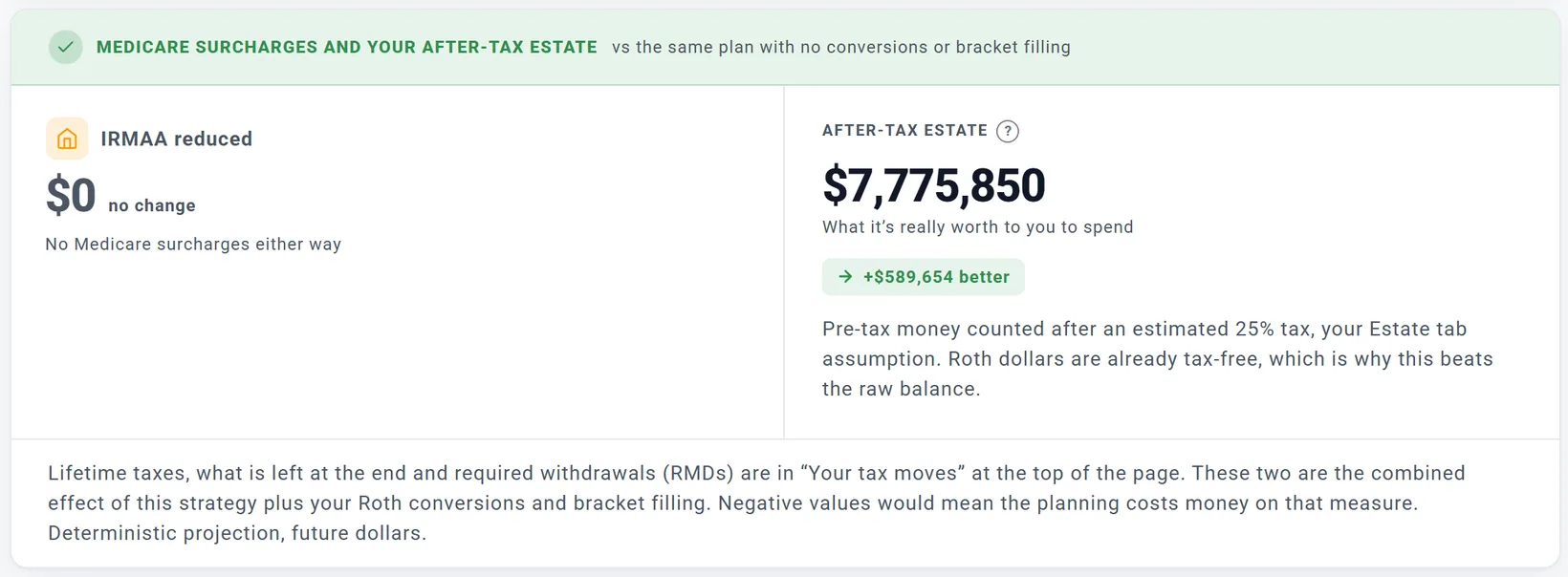
- IRMAA reduced: the Medicare surcharges in dollars, where the row above counts years.
- AFTER-TAX ESTATE counts the pre-tax money left at the end after the tax your heirs will pay on it, at your Estate tab's Tax-Deferred Rate (25% unless you change it), and Roth money in full. The card names the rate: "Pre-tax money counted after an estimated 25% tax, your Estate tab assumption." For Chris and Jamie's 12% fill it reads $7,775,850, $589,654 better than no tax planning: more than the $299,063 the raw ending balance gains, because less of what is left still owes tax.
- All of these come from one projection at fixed returns, not from Chance of Success. Check your Chance of Success after a change.
- They are in future dollars unless you pick Today's dollars on the overview at the top of the tab (the same choice as the Dashboard's). The amount you type to convert stays in each year's own dollars, because that is what the plan converts.
Less tax is not always more money
Lifetime taxes adds up every year's tax. In future dollars a dollar paid at 63 counts the same as a dollar paid at 90, although the dollar paid at 63 is worth more and also gives up the growth it would have had. Pick Today's dollars to count each year at its own prices: the tax paid in the conversion years then weighs more than the tax saved decades later, and a plan that saves tax in future dollars can pay more in today's dollars. Look at what is left at the end and the after-tax estate too. Four settings on Chris and Jamie's plan (future dollars, each against no tax moves):
| Setting | Converted | Lifetime taxes | Left at 94 |
|---|---|---|---|
| $50,000 a year, 63 to 74 | $600,000 | $274,088 less | $380,898 more |
| Fill to the top of the 12% bracket, 63 to 74 | $801,327 | $305,972 less | $299,063 more |
| Year by year: that fill, with 63 and 64 raised to just under the first IRMAA line | $1,014,500 | $353,015 less | $73,677 more |
| $180,000 a year with the Medicare surcharges limit on | $1,546,056 (the pre-tax money runs out at 71) | $391,627 less | $651,711 less |
The largest conversions pay the least tax over their lifetime but leave them $651,711 less at the end. The planner does not pick for you here; the Optimizer can search for the best setting, inside your limits.
The per-year plan
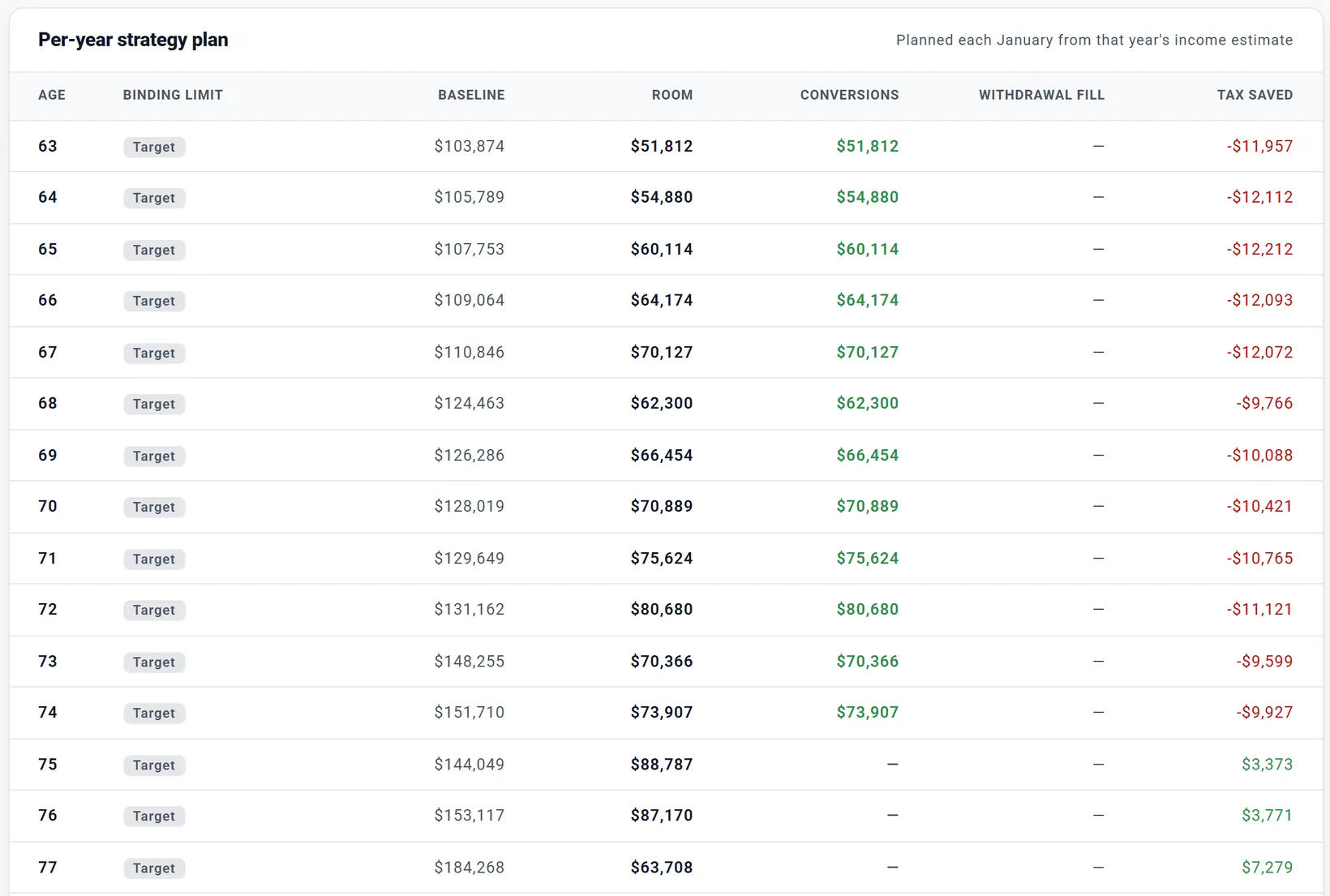
- BINDING LIMIT: the line that set the year's room (your target, or one of your limits).
- BASELINE and ROOM: the income the plan expected without the strategy, and the space left under the line.
- CONVERSIONS and WITHDRAWAL FILL: what was converted, and, with extra withdrawals on, how much more the year draws from pre-tax accounts than the same plan without the strategy (a dash when they are off).
- TAX SAVED compares each year with the same plan without the strategy: red (more tax) in the conversion years, positive later, as the smaller RMDs pay off. Chris and Jamie pay about $10,000 to $12,000 more a year from 63 to 74, then save from 75.
- Below it, 5-year rule tracking lists each year's conversion made before 59½ and the year the early withdrawal penalty stops applying to it (after five tax years, or at 59½, whichever comes first), with a warning if the plan takes converted money out of a Roth within five years and before 59½. Conversions made at 59½ or older have nothing to wait for, so they are not listed.
Where conversions show in your results
On the Dashboard, More > Roth Conversions Planner+ (listed while your plan has Roth conversions) draws each year's Conversion Amount, Net to Roth Account and Tax on Conversion.
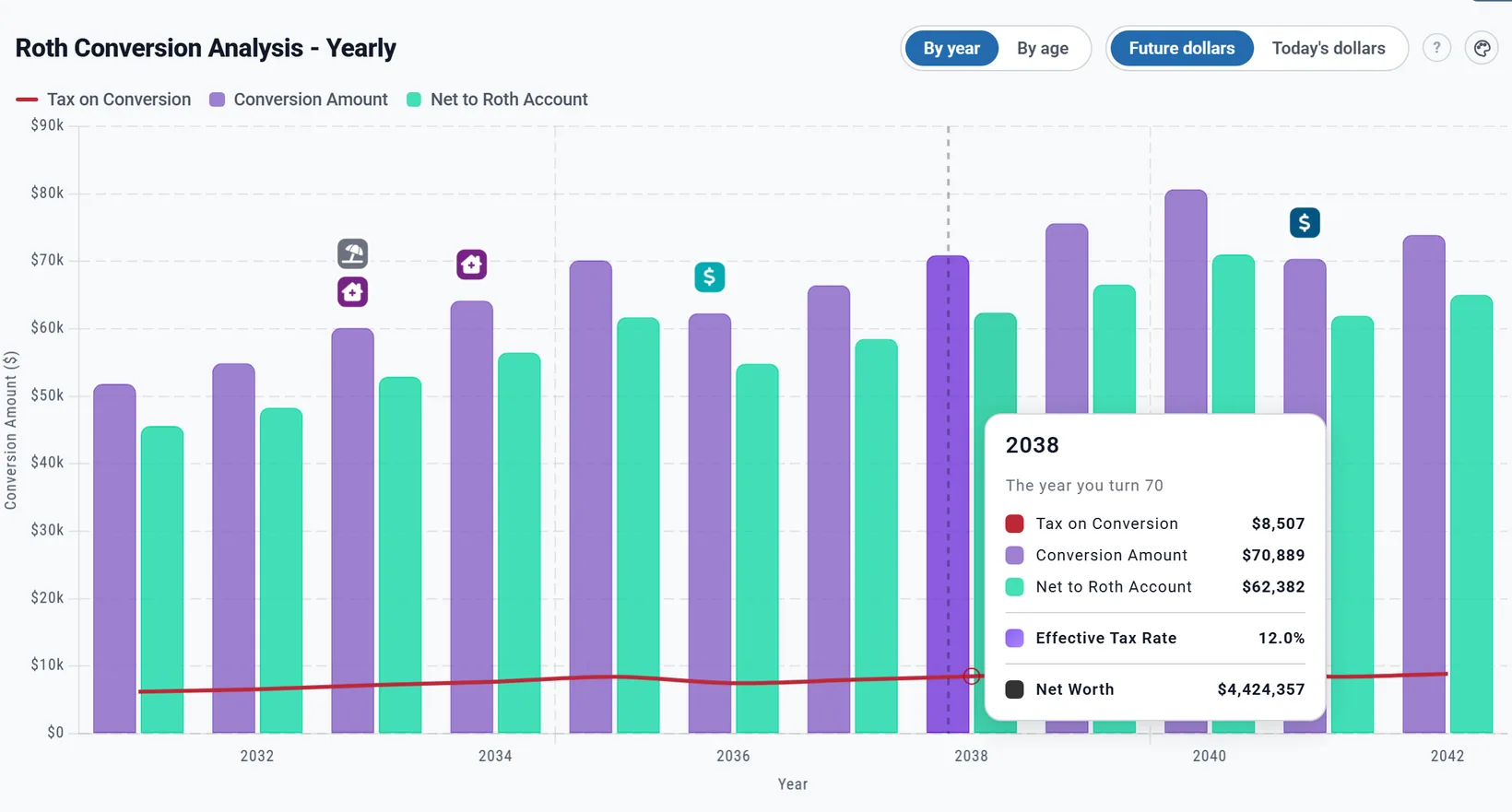
- Each bar is a calendar year, in By age and By year alike; the control only changes the caption.
- Tax on Conversion is the tax held back (or paid from cash), not the conversion's whole effect on your taxes, and the tooltip's Effective Tax Rate is that share (for a fixed amount, the flat rate held back: 12.0% unless your plan stored another). For the whole effect, use the Taxes chart tab on Roth & tax moves, or Your Taxes.
- The Withdrawals chart Planner+ stacks a Roth Conversions band on top: money moved into your Roth, not spent.
- The AGI Tracker Planner+ draws each year's bracket and IRMAA lines, rising with inflation (IRMAA lines only for years whose income sets a Medicare premium). Your AGI also counts dividends and gains, which a bracket fill does not aim at, so check a fill on the Income and brackets chart tab of Roth & tax moves.
- The Data Summary has Roth Conversions > Conversion Amount and Conversion Taxes, and on Charts & Data Planner+ a Roth Conversions figure explains that year's conversion.
- On the Withdrawals tab, Withdrawal order shows Roth conversions each year beside its Tax moves card when your plan converts.
On Your Taxes Planner+, By income source has a Roth Conversions row: the tax the conversions caused, including the tax on other income they pushed into higher brackets (see Your Taxes).
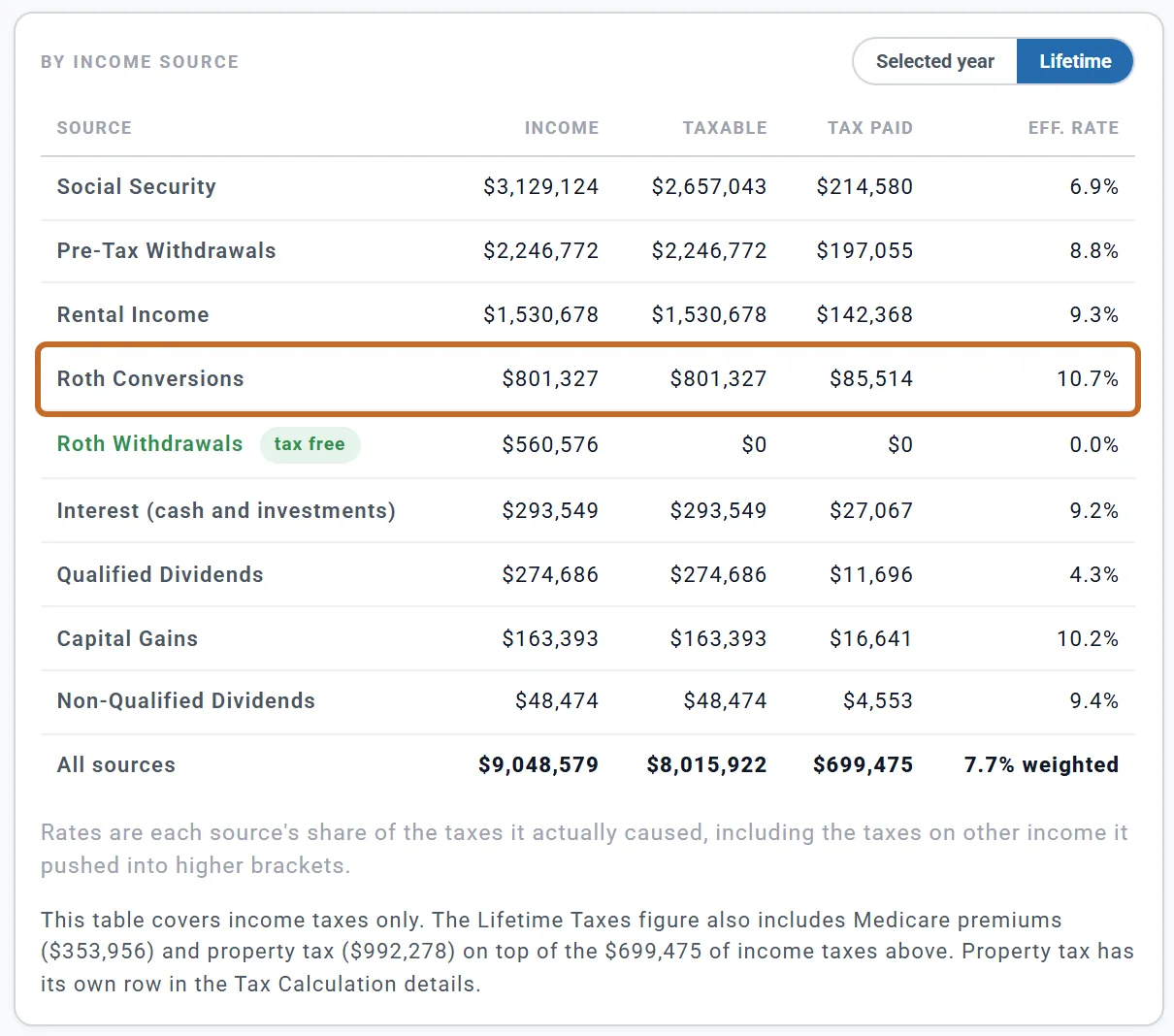
See By age or by year and today's dollars for how the charts count.
If the Optimizer set it up
The third page of the tab, Optimizer, searches conversion settings, bracket filling and withdrawal orders for you (see The Optimizer). Nothing changes until you choose Use these settings.
- Your limits come along. The Optimizer page shows them above its goals, with a link back to the card. Every option the search builds stays inside them, and using a result keeps them: the confirmation lists a Limits row and says "Your limits are kept."
- A result can add a limit. Some results aim at a line that is itself a cap (the 3.8% investment income tax line, the 0% capital gains line, or the ACA subsidy on a plan with marketplace coverage). Using one leaves that line switched on in Your limits; the Limits row of the confirmation shows the change.
- Use these settings writes the conversion choice, the extra Pre-Tax withdrawals and the withdrawal order. It moves Start age up to the first age that converts, so the slider and the label agree.
- The status tells you. The moves card and the settings panel then read "From the Optimizer" with the date, and From the Optimizer, edited by you once you change a tax move or the order by hand. Changing a limit does not count as an edit: the Optimizer's own status turns to Out of date: run again instead.
- To take it back, use Go back to my settings on the overview. It puts back the tax moves you had before and your withdrawal order (unless you changed the order by hand since), and removes a limit the result added; a limit you set or changed yourself stays as it is now. See Going back to your old settings.
- To try a result without changing this plan, make a copy of the plan first and use the result on the copy (see Make a what-if plan).
- A fixed amount the Optimizer picks is held back like any other when you have a limit on: the years held back are listed on this page after you use it.
In Canada and the UK
There are no Roth conversions outside the US. The second page of the Withdrawals tab is Bracket filling. Its card, Bracket filling (Canada) or Bracket filling (the UK), fills a lower bracket with extra RRSP / RRIF (Canada) or pension (UK) withdrawals in your lower-income retirement years. Where the money goes depends on your spending mode: with Monthly Expenses it goes to cash, unless you choose your non-registered account (Canada) or General Investment Account (UK) under DEPOSIT TO; in the other spending modes the after-tax dollars go to that account when you have one (with Monthly Income, after putting back any cash your spending used that month). With Monthly Expenses or Monthly Income, choosing Invest it in a brokerage account takes the cash away: what the extra adds to cash above your safety net goes to the account you picked. The card says which applies to your plan.
- Your limits has no switches here. The card shows one line marked Automatic: in Canada OAS recovery threshold (a fill never pushes your income over it once your OAS starts), in the UK the £100,000 allowance line (the fill stops at the personal-allowance taper). The plan keeps to it without a setting.
- FILL UP TO: off; in Canada the top of the 14% or the 20.5% federal bracket; in the UK the top of the 20% basic-rate band, or toward the higher-rate band (stopping at the £100,000 allowance).
- FILL WINDOW: Start age and End age (at first, your retirement age to the end of your plan). The biggest benefit is usually in the years before CPP / OAS and RRIF minimums, or before your State Pension.
- Results: ENDING PORTFOLIO against no fill, FILL YEARS, TOTAL EXTRA WITHDRAWN, a table Per-year extra withdrawals, and What these moves do with three rows (lifetime taxes, what is left at the end, required minimums).
- For a couple, each of you fills to your own band, from your own accounts.
- The money never goes into a TFSA or ISA.
- Canada: pension income splitting is in the Taxes box (Apply pension income splitting (Canada)), not on this card, and the fill's sizing ignores it. UK: the fill counts pension withdrawals as fully taxable when sizing, though 25% is tax-free, so it fills a little under the line.
In Australia and other countries, bracket filling is not available yet, and the Withdrawals tab has two pages: Withdrawal order and Optimizer.
What the planner does not model
- No conversion in the plan's first calendar year unless the plan starts in January.
- Conversions are decided once a year, in January, from an estimate; they are not adjusted later in the year. So a fill, or a year held at one of your limits, can end a little over its line.
- The year Social Security starts is the one most likely to end over a limit: the January estimate counts Social Security at the income before the conversion.
- You cannot choose which pre-tax account converts, except by locking one. In real life, converting from a 401(k) you still contribute to may need an in-plan conversion or a rollover first.
- The five-year rule is tracked and warned about, but the planner is stricter than the IRS: converted dollars taken out of a Roth before 59½ are charged the 10% penalty like earnings, even after five years. Only contributions (the Past contributions you enter on a Roth account, plus what the plan adds later) come out without it, while the Taxes box's early-withdrawal penalty is on. Early retirers planning a conversion ladder should allow for this.
- Brackets and thresholds grow with your plan's inflation rate, not with future IRS announcements.
- Your heirs' taxes are only one assumed rate, your Estate tab's Tax-Deferred Rate (25% unless you change it), used by the Optimizer and the Estate tab alike; their 10-year rule is not modelled.
For the full list of what the planner includes and leaves out, see the Learning Library article What ReadyAimRetire Models.