



 Continue with Google
What the Optimizer does
The Optimizer tries many ways of taking money out of your accounts in retirement, and shows you the one that leaves you best off. It changes nothing in your plan unless you choose to use a result, and you can go back afterwards.
It is the third page of the Withdrawals tab at the top of the planner (also Withdrawals in the left menu). The tab has three pages:
- Withdrawal order: the order your money is spent in (see Where your spending money comes from).
- Roth & tax moves: your Roth conversions, extra Pre-Tax withdrawals and limits (see Roth conversions and tax strategy). On a US plan with no Roth account it is called Tax moves, and in Canada and the UK Bracket filling.
- Optimizer: the search this page is about.
Under each name is a line that says what your plan sets there; under Optimizer it is the state of the search. All three share the strip at the top: Lifetime taxes, what is left at the end of the plan, and your withdrawal rates.
On a US plan with a Roth account, every option it tries is a mix of three choices: US
- A withdrawal order. All seven: Balanced and the six fixed orders, such as taxable first, then pre-tax, then tax-free (see The order of your investment accounts).
- Roth conversions. None; filling your income each year up to a line (the top of the 12%, 22% or 24% tax bracket, the first Medicare surcharge (IRMAA) threshold, the investment-income tax (NIIT) threshold if you have investment income, the edge of the 0% capital gains rate if you have gains, or an income limit of its own); or a fixed amount each year, over several age windows.
- Extra Pre-Tax withdrawals that fill a tax bracket in low-income years. Where the money goes depends on your plan: to cash, or to your brokerage account.
Then it fine-tunes the best one: a custom split of your withdrawals between your taxable, pre-tax and tax-free accounts (a refined mix), where the extra Pre-Tax withdrawals are deposited, and whether the tax on conversions is paid from cash or withheld from the conversion.
Every option is your own plan run through the same calculation as the Dashboard, with your accounts, income, spending and taxes. Only the withdrawal order, the Roth conversion settings and the extra Pre-Tax withdrawals differ (in Canada, also pension income splitting).
It stays inside your limits
A limit is a line you never want your income to cross: a Medicare surcharge (IRMAA) tier, your marketplace (ACA) subsidy, a capital gains rate, or the 3.8% investment income tax. You set them once, on the Your limits card at the top of Roth & tax moves (see Your limits). US
- Every option the search builds stays inside them. A fixed conversion amount is held back in the years that would cross one, and the result then says "A year converts less, or nothing, when the full amount would push your income over one of your limits." Two things are not held back: your settings now, and your own tax moves when the search tries them under another withdrawal order. The note under the options table says so when the second was tried.
- Using a result never removes or changes a limit you set.
- The Your limits: row above the search panel names them, with Change (or Add one when it reads None set), which opens the card (with no limit on, the card rests as one line, "Your limits: none set."; the link shows it in full).
- With no limit set, the search tries the same options it always did.
How it picks the best match
- With The most left after taxes, an option that runs out of money sooner than your current plan can never win. If your plan runs out, the option that lasts longest wins. After that, the one with the most Left after taxes at plan end.
- Left after taxes at plan end adds up your cash and every pre-tax, Roth and taxable account, both of you, in the plan's last month, with your HSA and any inherited accounts, counting pre-tax money (an HSA and an inherited IRA included) after the tax still owed on it, at your Estate tab's Tax-Deferred Rate (25% unless you change it; the card names the rate). Real estate and other assets are not in it. If your estate owes estate tax, the tax your savings cause comes off too (see The Optimizer counts it too).
- Lifetime taxes adds every month's tax: federal, state, payroll, Medicare surcharges and the tax on conversions. It leaves out property tax, which no option changes, so it is lower than the lifetime taxes on the Summary.
- An option is only named the best match if it beats your current plan by at least $5,000 and by at least 0.25% of your portfolio at plan end (1% of lifetime taxes with The lowest taxes along the way), or makes your money last longer. Otherwise you see Already optimal.
- It uses one projection, with the returns and inflation you entered, the same every year. It ranks in future dollars; Future dollars or Today's dollars on the strip changes how the figures are shown (see Read the result). To see how a result holds up in bad markets, check Chance of Success after you use it.
Before you run it
A search only looks. Nothing in your plan changes until you choose Use these settings, and after that Go back to my settings puts things back (see Go back to your settings).
- Set your limits first. US If there is a line you never want to cross, switch it on in Your limits before you search. Changing a limit later makes a result out of date.
- Retiring before 65 and buying marketplace coverage? US Turn marketplace coverage on in the Health Care box first. The Optimizer then keeps your income under the subsidy limit in the years before Medicare, and the limits row reads Keep ACA subsidies (from your Health Care box). Options that fill to an income limit stop at it, and a fixed conversion amount is held back in the years that would cross it. The panel's Health insurance before 65 note says whether coverage is on, with Open the Health Care box. It shows when either of you retires before 65.
- Look at your Chance of Success first, so you have a "before" number to compare with after you use a result. Visiting it between the search and using the result does not clear the result.
- Leave your plan alone while it runs. A change to the plan clears the result, and you start again.
Run a search
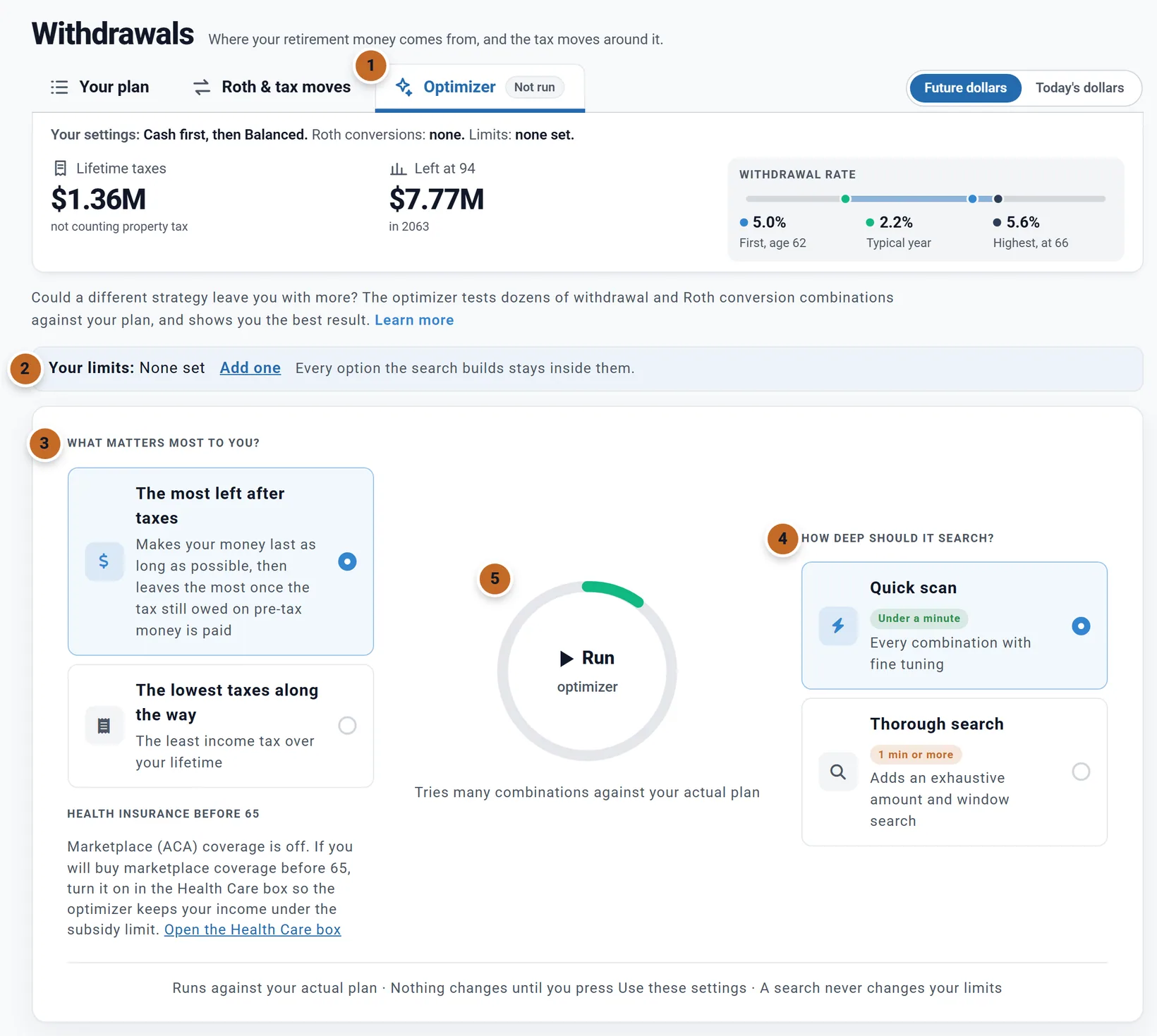
- Open Withdrawals, then Optimizer. The words under it say where the search stands: Not run to begin with (see Keeping it up to date).
- Read the Your limits: row (see It stays inside your limits).
- Under What matters most to you? choose The most left after taxes (the default: makes your money last as long as possible, then leaves the most once the tax still owed on pre-tax money is paid) or The lowest taxes along the way (the least income tax over your lifetime). Read the Health insurance before 65 note if you see one.
- Under How deep should it search? choose Quick scan (the default) or Thorough search, which adds a wider search of amounts and age windows. Only US plans with a Roth account have this choice; others see What it tests instead (see Outside the US, and plans without a Roth account).
- Choose Run.
The choices are labelled Under a minute (Quick scan) and 1 min or more (Thorough search). On Chris and Jamie's plan, a Quick scan tried 263 options in about half a minute, and a Thorough search tried 876 in about a minute. The wider search can find a better match: their Thorough search's came out $833,688 ahead, against $741,108 for the Quick scan's.
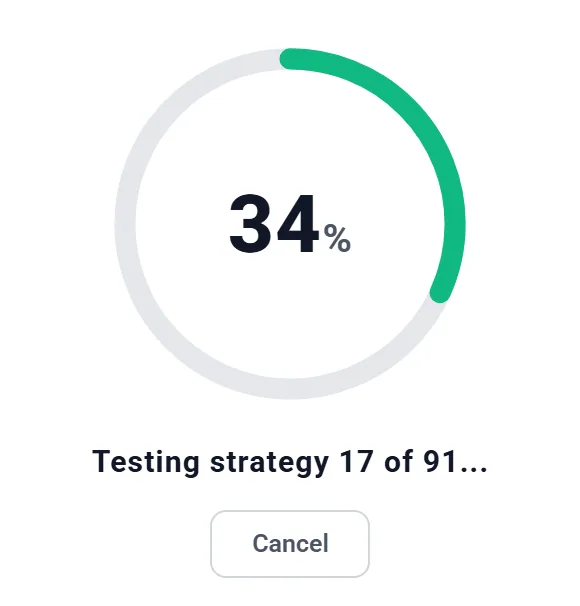
- While it runs, a ring shows how far it has got, and a line such as "Testing strategy 17 of 91..." (later "Refining", "Fine tuning" and so on). Cancel stops it and shows what it found so far, marked "The search was cancelled; the results below are partial."
- When it is done, the panel folds to one line, such as "Your search: The most left after taxes · Quick scan", and the page moves so the result is in view under it (see Read the result).
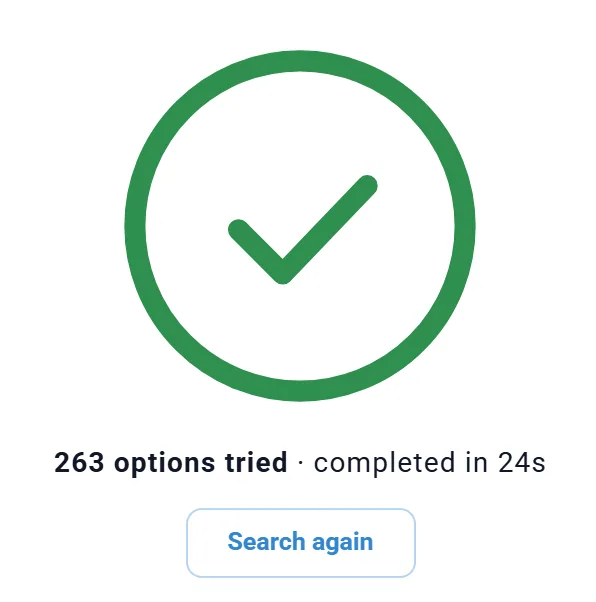
- Change the goal or search again on that line opens the panel again, with the goal and depth of the search on screen. It shows a green check, one count, options tried (every run the search made, the fine tuning included; the result card says the same number, as BEST OF 263 here), and Search again. Close folds it.
- You can switch to another tab while it runs. It keeps going, and the result is waiting when you come back.
- The result stays only while the page is open. Reloading the page, switching plans, or changing anything in your plan clears it, and the panel shows Run again. Your goal and depth go back to the defaults when you reload.
- Before your first search, the page shows an example below the panel, marked EXAMPLE. Its figures are an illustration, not your plan.
Read the result
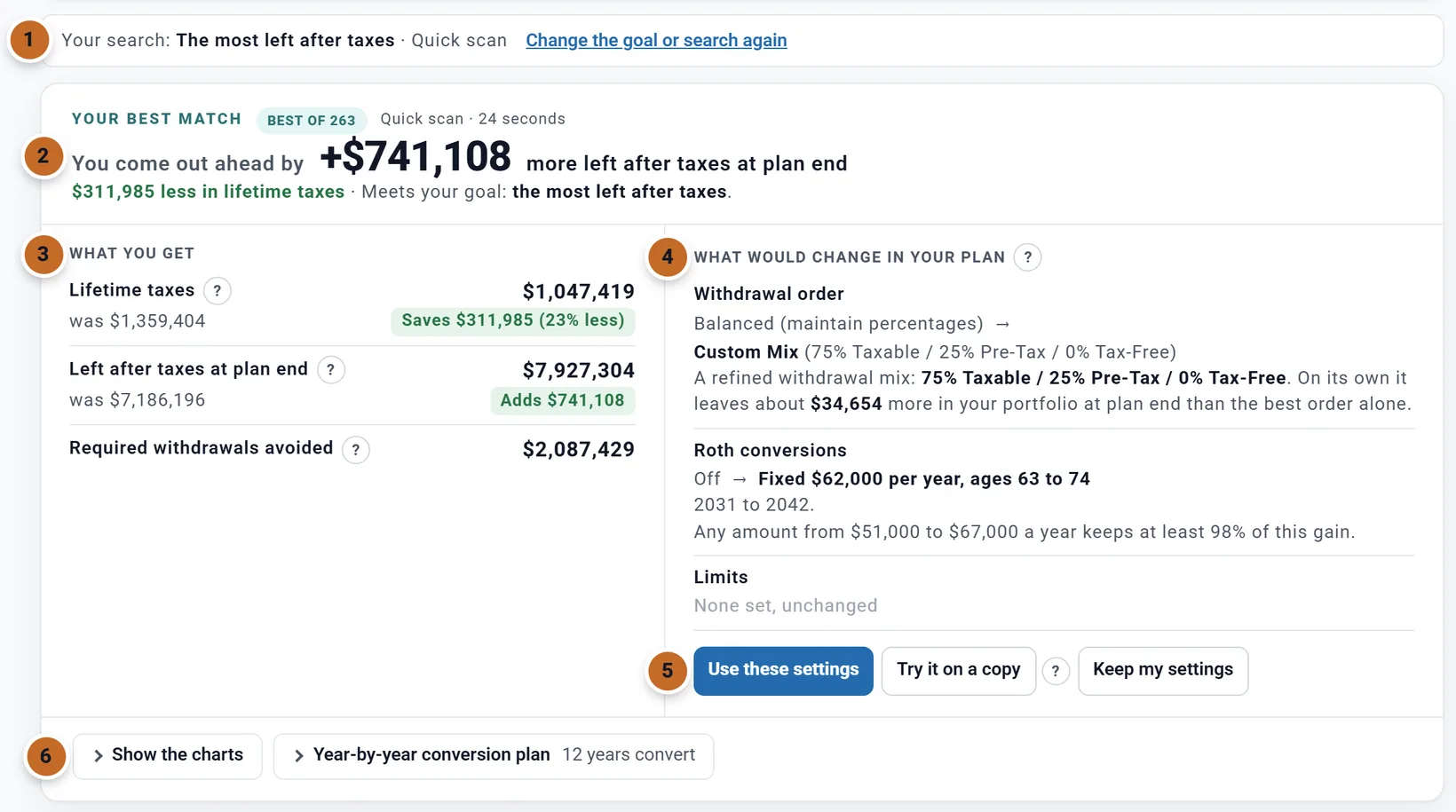
The result is one card. Its headline is what the best match gains on your goal. For Chris and Jamie, it ends with $741,108 more left after taxes at plan end than their settings now, and pays $311,985 less tax over their lifetime.
- The one-line panel says which search this is, with Change the goal or search again (see Run a search).
- The headline, and under it a tax saving when there is one and whether the result meets your goal. A result that wins has a green band, a small medal and a green figure; one that gains nothing, or is about the same on your goal, has a grey band and a scale. The line above the headline says how the search ran: BEST OF 263 is the number of options it tried, then, at the right, the depth and the seconds.
- What you get: each figure now and with the best match (see What you get).
- What would change in your plan: each setting as it is now, and with the best match (see What would change in your plan).
- Use these settings, in the bar across the bottom of the card (see Use a result, or keep your settings).
- Year-by-year conversion plan, at the left of the same bar, opens the conversions year by year under it.
- A ? beside a label opens a short note about it. Choose it again, or anywhere else, to close the note.
- Future dollars or Today's dollars, at the right of the page names at the top of the page, switches the figures on the card and its charts. It is the same choice as the Dashboard's, and the only one on the Withdrawals tab. The ranking itself always uses future dollars.
- In a narrow window the two halves of the card stack: the changes under the figures, then the bar with the buttons.
The headline changes when the best match does not gain on your goal. In a spending mode such as Monthly Income or Using the 4% Rule, the refined mix is chosen for the spending it pays for, so the result can end with less in the portfolio and lead instead with "Your plan funds" and the extra lifetime spending. When your plan and the result both run out of money, it leads with "Your money lasts" and how much longer, such as "2 years longer before your savings run out", whatever the other figures did.
What you get
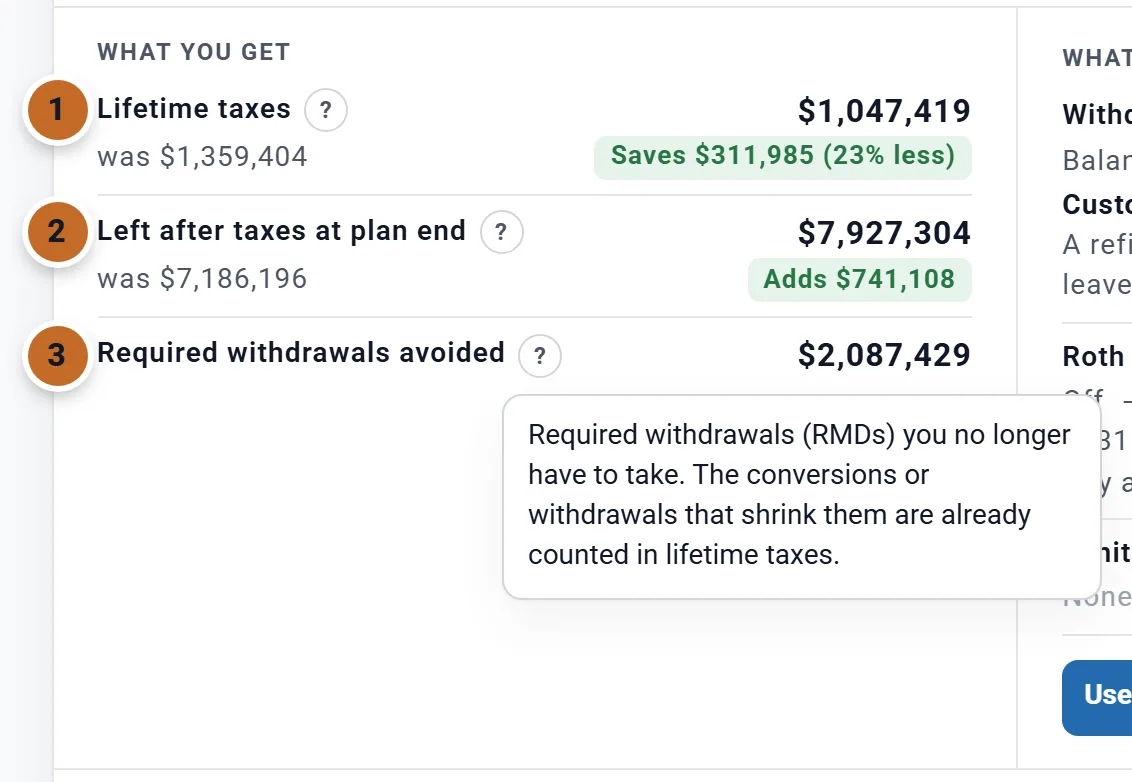
Each figure has its name, with a verdict beside it such as "Saves $311,985 (23% less)" or "Adds $741,108", and two bars under it: Now, the figure with your settings now, and Best match. The longer bar is the larger figure, and both start from zero, so a small difference looks small. A green bar is a gain, a red bar is more tax, and an amber bar is a smaller portfolio. A figure that moves by less than $1,000 reads About the same. Required withdrawals avoided and Medicare surcharges are one figure each, so they have no bars.
- Lifetime taxes. Its note says what is in it: income tax, payroll tax and Medicare surcharges, not property tax, which no strategy changes. When required withdrawals go up with the best match, the same note says by how much, and why that alone is not bad news.
- Left after taxes at plan end: your portfolio at plan end, with pre-tax money counted after the tax still owed on it. Its note names the rate.
- Required withdrawals avoided: required withdrawals (RMDs) that no longer have to come out. The tax on the conversions that shrink them is already in lifetime taxes.
- Three more rows appear when they matter: Money lasts until, when either plan runs out of money, with the two ages in words and no bars (such as "Now age 84 and 9 months", "Best match Age 86 and 9 months"); Lifetime spending, when options differ in what they pay for; and Medicare surcharges, when they go up or down.
- The goal note, under the headline, says whether the result meets your goal. With The most left after taxes, a result that pays more tax to get there shows that cost once, as the red Lifetime taxes figure, and the note adds how to search for the lowest taxes instead. With The lowest taxes along the way, a result that ends with less in your portfolio adds a line such as "Each $1.00 of tax saved costs about $X of your portfolio at plan end." With that goal, Chris and Jamie's best match paid $472,530 less tax and also ended with $137,070 more, so the note read only "Meets your goal: lowest lifetime taxes."
- When the figure for your goal moves by less than $1,000, the note reads "About the same on your goal" and says what the best match wins on instead. When both plans run out of money it reads "Both plans run out of money, so the search first finds the one that lasts longest."
What would change in your plan
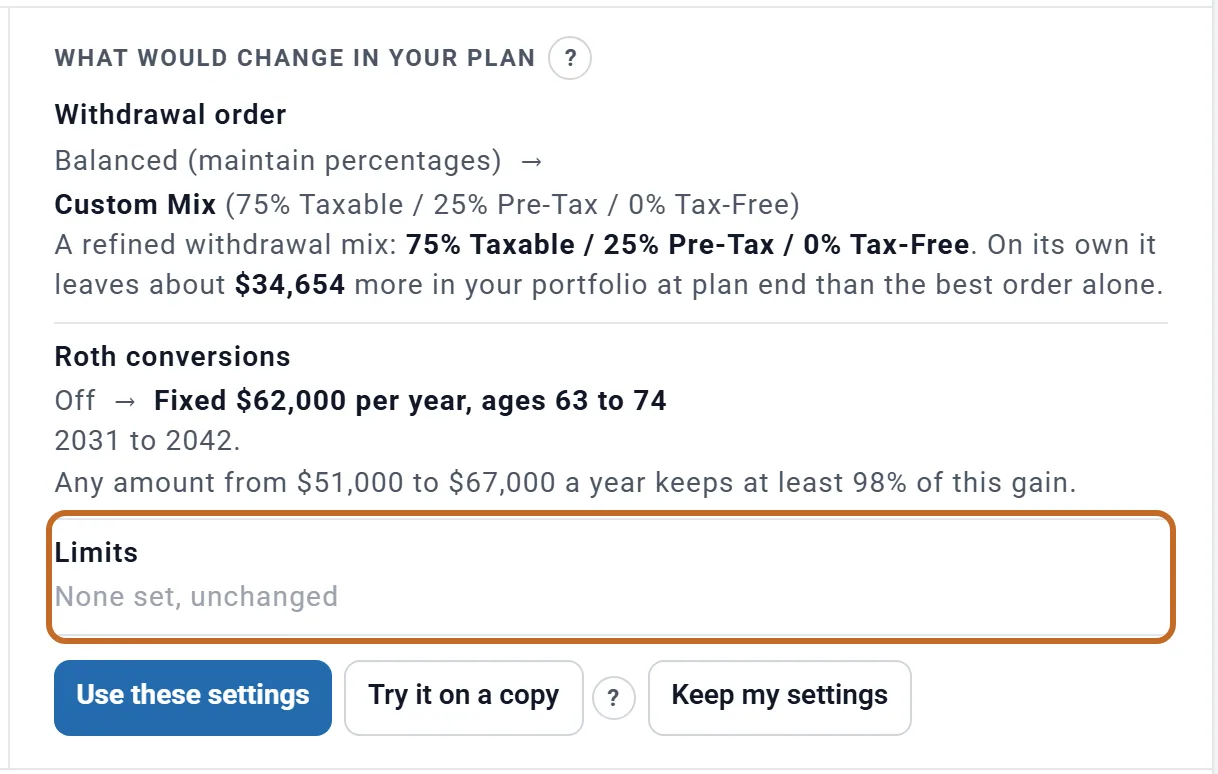
What would change in your plan lists each setting: on the left of the arrow your settings now, on the right the best match, highlighted in blue. A setting the result leaves alone reads "unchanged" and has a grey icon. The Withdrawal order row is always there, and with a refined mix it reads Custom Mix with its percentages. Other rows you may see: Conversion tax paid from, Income ceiling, Extra Pre-Tax withdrawals to cash (or to your brokerage account), and in Canada Pension income splitting.
- The lines under a row give its detail. Under Roth conversions: the calendar years (the ages are the primary's, Chris's, and each is the age reached during that calendar year); for a fixed-amount or income-limit result, the nearby values that do almost as well, such as "Any amount from $51,000 to $67,000 a year keeps at least 98% of this gain."; and, when they apply, "Only N of these years convert" or "A year converts less, or nothing, when the full amount would push your income over one of your limits." A fixed amount that converts in no year at all says it is the same as no Roth conversions.
- A refined withdrawal mix shows on the Withdrawal order row when the fine tuning found a split of your withdrawals between your taxable, pre-tax and tax-free accounts that does better than the best order on its own. The row names the split, for Chris and Jamie Custom Mix (75% Taxable / 25% Pre-Tax / 0% Tax-Free), and the line under it says what the mix adds: "On its own this mix leaves about $34,654 more in your portfolio at plan end than the best order alone." The result then follows that split instead of an order.
- The ? beside the title says the whole strategy in one sentence: here, "Convert a fixed $62,000 each year from age 63 to 74 (2031 to 2042), spending from taxable accounts first, then pre-tax, then tax-free. With the refined mix, withdrawals follow 75% Taxable / 25% Pre-Tax / 0% Tax-Free instead of that order."
- The Limits row is always there on a US plan, and almost always reads "unchanged". The one exception: when the result's own target is a line that is also a limit (the 3.8% investment income tax line, or the edge of the 0% capital gains rate), using it leaves that line on your plan as a limit, and the row says so. With The lowest taxes along the way, Chris and Jamie's best match filled to the investment-tax line, and the row read None set to No 3.8% investment tax. You can switch such a limit off afterwards in Your limits.
- A ? beside Withdrawal order appears when the order hardly matters. Its note reads, for example, "Withdrawal order makes no difference for you: all 7 orders tried finish within $1,000 of each other with these settings, so yours is kept." (or "makes almost no difference" when the best match uses another order than yours).
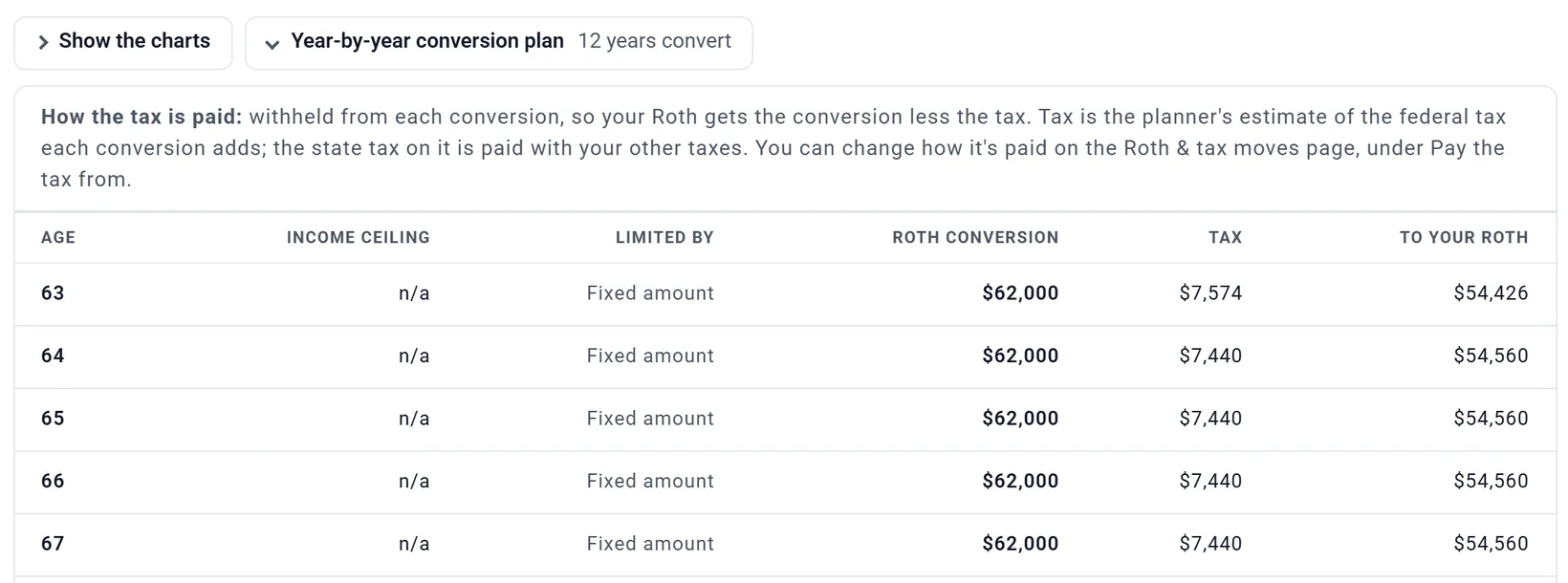
Year-by-year conversion plan, in the bar at the bottom of the card, says how many years convert (where the bar has room for it) and opens a table of each year's conversion and what limits it, the Tax on it and what goes To your Roth. The line over the table says how that tax is paid: withheld from each conversion (the default, so your Roth gets the conversion less the tax), or from your cash (see Paying the tax). The tax is the planner's estimate of the federal tax the conversion adds. Choose the button again to fold the table away.
What a limit costs
When you have set a limit of your own, the search makes one extra run: the result with your limits taken off. If the difference on your goal is large enough to matter, a line under the rows of What would change in your plan says so, for example "Your limit (0% gains bracket) costs about $X in your portfolio at plan end with this option." A second sentence gives the other figure (lifetime taxes, or the portfolio) when it moves by $1,000 or more.
- The link beside it (such as See this option without it) opens one row marked FOR REFERENCE, with both figures without your limits and inside them. It has no button: it goes over your limit, so it is not one of the options, and Use these settings never applies it. To allow it, change your limits on Roth & tax moves and run the search again.
- The figure is for this one option. Another option might do better still without the limit, so read it as "at least this much".
- No line means the limit costs nothing that matters on your goal. That is common. When Chris and Jamie switched on the first Medicare surcharge limit, and then the 0% capital gains limit, the search stayed inside each one and showed no cost line.
- The automatic marketplace limit from your Health Care box is not counted here: it stays on in the extra run.
Nothing changes until you use it
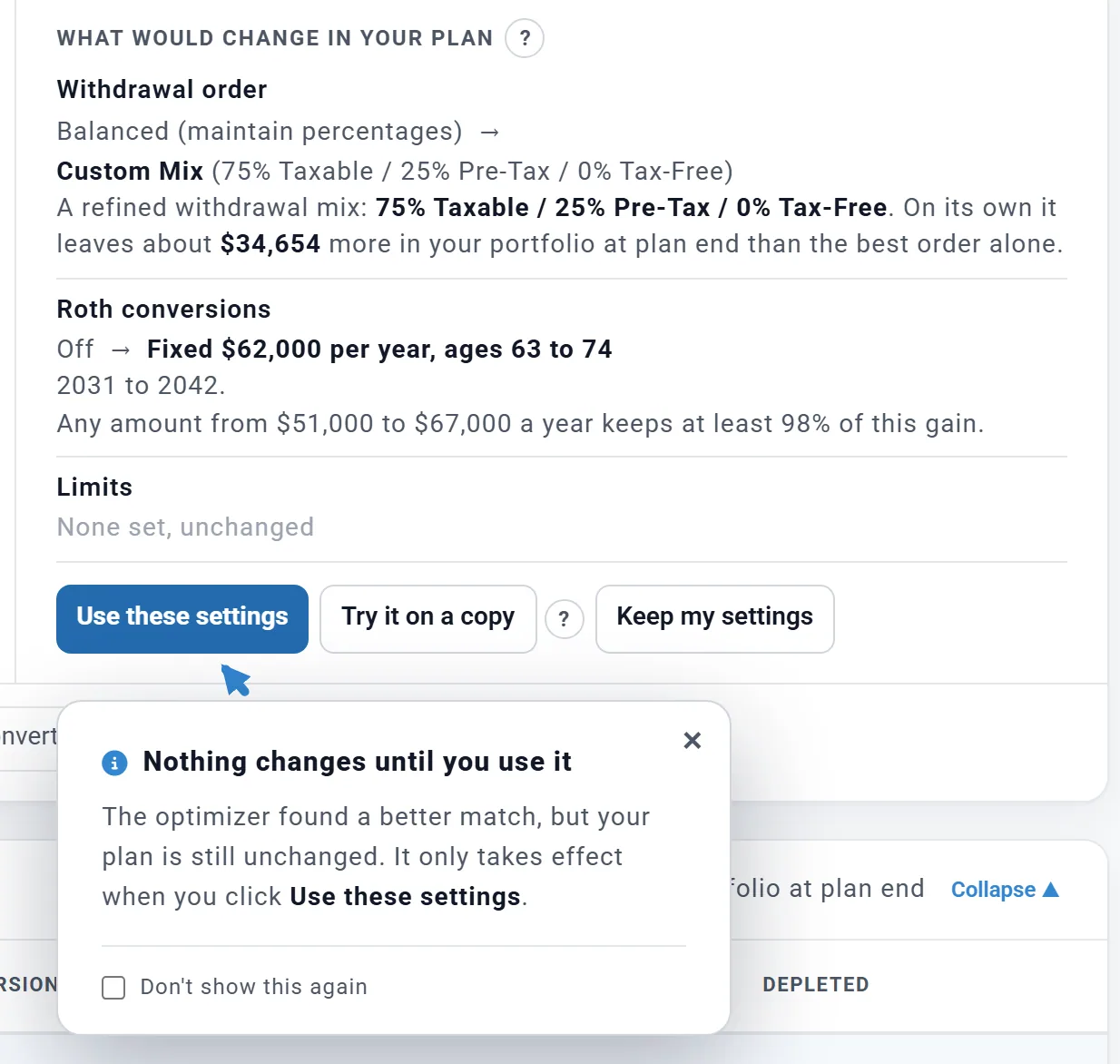
When a result appears, a card near the buttons points at Use these settings to remind you that your plan has not changed yet. Close it, or tick Don't show this again.
How the options compare
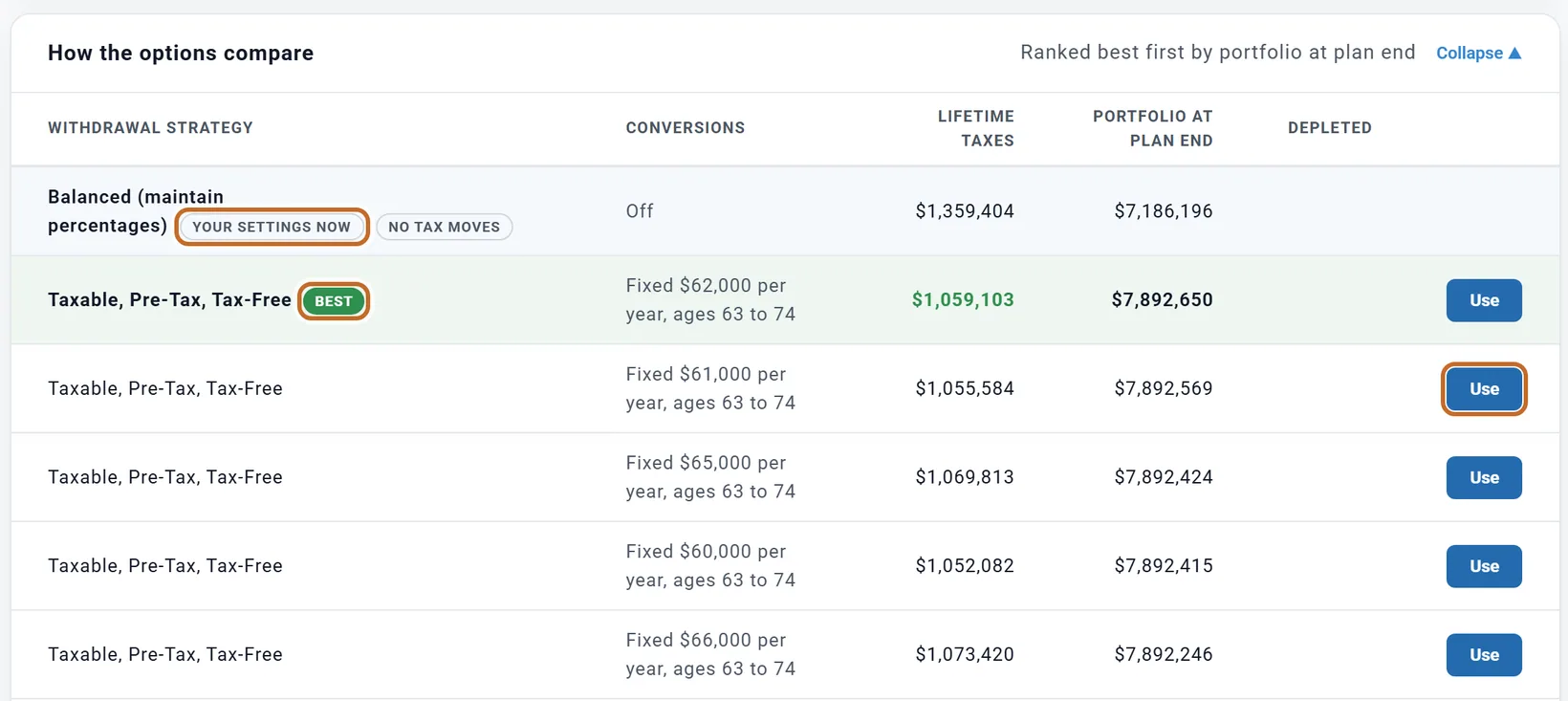
- The table lists the options best first by your goal. Click Lifetime taxes or Portfolio at plan end to sort by it. Depleted shows the age the money runs out, if it does.
- Two rows lead the table so you always have something to compare with: YOUR SETTINGS NOW, your plan as it stands, and NO TAX MOVES, your own withdrawal order with no conversions and no extra Pre-Tax withdrawals. When your plan has no tax moves, as Chris and Jamie's, one row carries both marks. The best match is marked BEST.
- The table can list fewer rows than the options tried (207 of 263 here). Options that read and score the same are shown once, the fine-tuning runs are not rows, and rows with the same tax moves under different withdrawal orders that finish within $1,000 of each other on both figures fold into one, with a note such as "Within $1,000 of this: 6 other withdrawal orders".
- When the best match has a refined mix, the BEST row shows it before the mix, so its numbers are not the card's. For Chris and Jamie the row reads $7,892,650 and the card $7,927,304.
- Each row's Use opens the same dialog as Use these settings. It uses that option exactly as tested, without a refined mix, which belongs to the best match only.
- Options that run out of money sooner than your plan are listed after the others and can never be the best match.
When your plan is already near-optimal
If no option clears the bar (see How it picks the best match), the card says Already optimal and "Your current setup is already near-optimal.", then either "No tested combination beat your current plan." or how much the best one would add, "which is within the model's error margin." Under YOUR CURRENT PLAN it lists your withdrawal order, Roth conversions and extra Pre-Tax withdrawals. There is nothing to use, so Use these settings does not show. A search that ends this way still counts: the word beside Optimizer reads Up to date.
One-click suggestions on the card
After the search, the Optimizer tries the result once more with one thing done the other way US:
- The tax on conversions paid from cash instead of withheld from the conversion, or the reverse (only when the result converts, and paying from cash needs cash): Pay the tax from cash or Withhold from the conversion.
- The extra Pre-Tax withdrawals deposited to your brokerage account instead of cash, or the reverse (needs a brokerage account): Use brokerage deposits or Use cash deposits; or extra Pre-Tax withdrawals turned on when the result has none: Use extra Pre-Tax withdrawals.
A suggestion shows only when it is clearly better (at least $5,000 and 0.5% more on your goal, paying for the same spending), as a line under the two halves of the card that starts One more idea., such as "Paying the conversion tax from cash instead of withholding it from the conversion would add about $X to your portfolio at plan end." Chris and Jamie's search for The most left after taxes offered none: neither change cleared the bar. With The lowest taxes along the way it offered Pay the tax from cash: "Paying the conversion tax from cash instead of withholding it from the conversion would trim about $5,818 of lifetime taxes, and add about $196,112 to your portfolio at plan end."
- On a result card, the button adds the choice to the result and changes nothing yet: the line then says "Added to this strategy: it takes effect when you apply it.", and the Use these settings? dialog lists it.
- On an Already optimal card, an extra-withdrawals suggestion (Use brokerage deposits, Use cash deposits or Use extra Pre-Tax withdrawals) changes your plan straight away, with no dialog, and the button reads Applied. The conversion-tax suggestion shows on a result card only.
Use a result, or keep your settings
The result card has one button, Use these settings. Nothing changes in your plan until you press it.
Use these settings
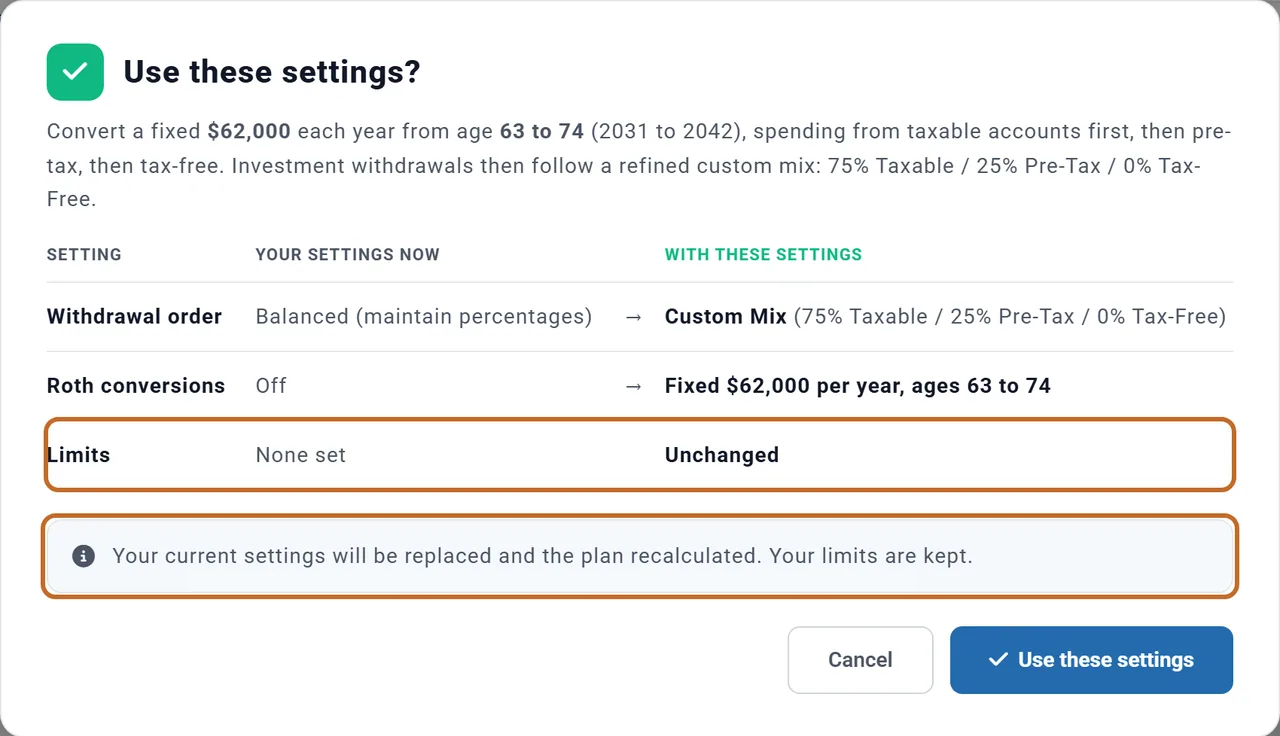
- Choose Use these settings, or Use on a row of the table.
- Read Use these settings?: the strategy in words, and a table of each setting with Your settings now and With these settings. The Limits row is the same one as on the card, and the line under the table says "Your limits are kept."
- Choose Use these settings, or Cancel (or click outside the dialog) to leave your plan as it is.
On a US plan with a Roth account, it writes, all at once:
- Roth conversions: on or off, fixed amount or fill to a limit, the ages, the amount or limit, and how the tax is paid. If the result has no conversions, your own conversions are turned off.
- Extra Pre-Tax withdrawals: whether they are made, the line they fill to, and where they go.
- The withdrawal order. With a refined mix, your withdrawal strategy becomes Custom Mix with its percentages, and the Withdrawal Strategy box switches from Pick a strategy to Build my own. Without one, the result's order replaces yours and your choice there stays.
- Your limits: written back as they were (see the one exception under What would change in your plan).
- In Canada, for a couple: Apply pension income splitting (Canada) in the Taxes box, on or off. Canada
For Chris and Jamie, it turned on Roth conversions of $62,000 a year from 63 to 74, set their withdrawals to a Custom Mix of 75% Taxable / 25% Pre-Tax / 0% Tax-Free, and left extra Pre-Tax withdrawals off. Nothing else in the plan moved.
It never changes your spending, ages, income, contributions, accounts and balances, returns and inflation, the cash choices (Spend cash first, Hold cash in reserve, Custom amounts), minimum balances, cash that builds up in retirement, the account order within a bucket, your RMD choices, the Extra Withdrawals box or Health Care.
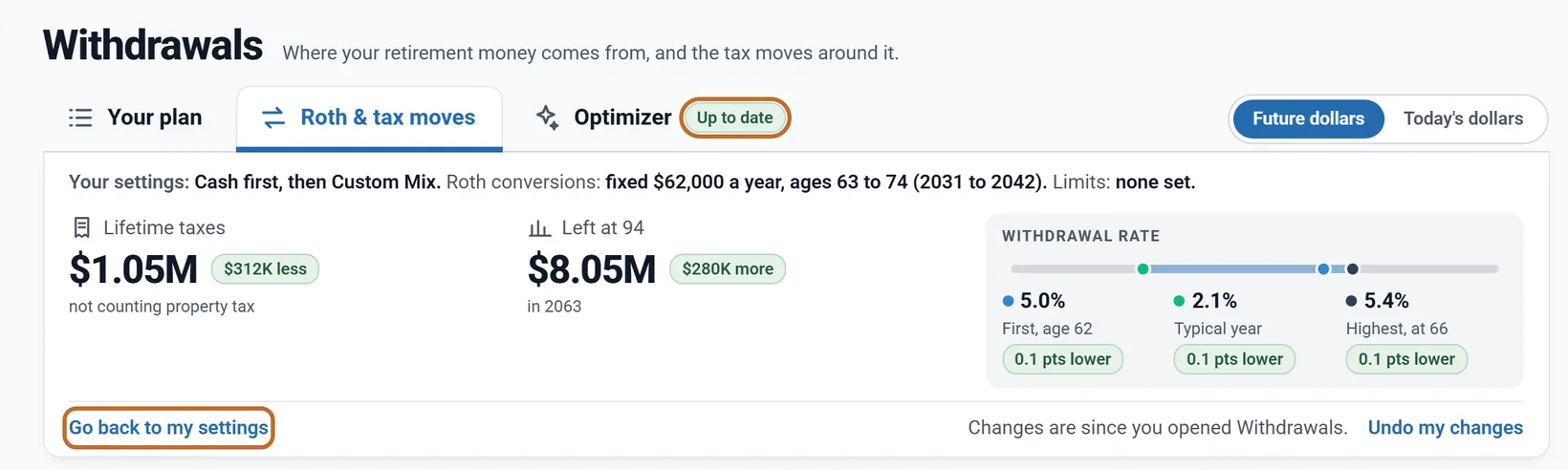
After you use a result, the plan is recalculated and saved, and you land on Roth & tax moves, where the settings can be adjusted (see Roth conversions and tax strategy). Outside the US, a result that only changes the withdrawal order leaves you on the Optimizer.
- On Withdrawal order, the overview's Your settings line now names the new settings, and a small label beside each figure that moved says how far, in words, since you opened Withdrawals.
- Left at 94 on the strip is the whole balance before tax, so it moves by a different amount than the card's after-tax figure (+$280K against +$741,108 for Chris and Jamie).
- The tax moves card reads From the Optimizer, Nov 20 (the day you used the result), and Go back to my settings appears on the strip.
- The result card is gone, because your plan has changed: the Optimizer page shows Run again.
Try a result on a copy of your plan
The card has no button for this. To see a result without changing your own plan, make a copy of your plan first (see Make a what-if plan), open the copy, run the search there and press Use these settings. Compare Plans then shows your plan beside the copy (see Compare plans side by side). Planner+
Keep your settings
To keep your settings, do nothing: a result never changes your plan until you press Use these settings. The result stays on the page until you reload, switch plans or change your plan.
Go back to your settings
After you use a result, Go back to my settings is at the top of all three Withdrawals pages, under the page names (ringed in the picture above). One click puts back the settings the result replaced. For Chris and Jamie, every setting was the same afterwards as before they used the result.
- What goes back: your Roth conversions, your extra Pre-Tax withdrawals, your withdrawal order or mix (with Pick a strategy or Build my own as you had it), and in Canada pension income splitting.
- Your limits stay as they are now. A limit you set, lifted or changed after using the result is yours and is kept. A limit the result itself put on your plan (see What would change in your plan) comes off again, unless you changed it since.
- Changes you made by hand afterwards. Roth conversions and extra Pre-Tax withdrawals go back to what they were before the result, even if you adjusted them since. A withdrawal order you changed by hand since is left as you set it.
- The settings from before are kept with the plan, so the link is still there after you reload or come back another day. It goes away once you go back, or once you have turned off by hand everything the result set.
- Afterwards the settings read Set by you again, and the Dashboard pill reads Try the Optimizer.
Undo my changes is something else
Undo my changes, also on the strip, shows whenever you have changed the plan since you opened the Withdrawals tab, with or without the Optimizer. It asks first ("Put every setting back to how it was when you opened Withdrawals? Account and budget edits stay as they are."), then puts the whole plan back to that moment. It only reaches back to when you opened the tab; Go back to my settings reaches back to before the result was used, whenever that was.
If you used the result on a copy of your plan instead, your own plan never changed, so there is nothing to go back from there.
Check Chance of Success after you use a result
The Optimizer judges every option on one projection, with your returns the same every year. Chance of Success replays real market history (or simulated futures built from it) instead (see Why it differs from the Dashboard). After you use a result, open the Chance of Success tab and compare it with the number you noted before.
- The result card has no market test of its own.
- Compare Plans does not include Chance of Success: open each plan's tab to compare.
- Small differences between options are within the model's error margin. Treat close calls as ties, and pick the one that is simpler to live with.
Keeping it up to date
The search result is not saved, but a result you used is, with a record of the day. Each plan keeps its own record. Two sets of words say where things stand, and they read the same wherever they show.
| Words | What they mean |
|---|---|
| Not run | No search in this visit, and no result in use. A search you ran but did not use reads this again after you reload. |
| Up to date | The last search, or the result you used, still fits the plan as it stands. |
| Out of date: run again | Your plan changed since the search, or since you used a result. |
| Set by you | Your withdrawal settings are your own: no result is in use. |
| From the Optimizer, Nov 20 | You used a result that day, and the settings are still what it set. |
| From the Optimizer, edited by you | You used a result, then changed one of its settings by hand. |
The first three are about the search. They show beside Optimizer in the row of pages and in the Withdrawal Strategy box. The last three say who made the settings. They show on the tax moves card and in the box.
When it is out of date
- Any change to your plan after a search, or after you use a result, makes it out of date: spending, ages, accounts, returns, a box you add, and so on. Display choices do not.
- Changing a limit makes it out of date too. A limit is not one of the Optimizer's settings, so the words stay From the Optimizer with the day, not "edited by you".
- Changing one of the result's own settings by hand (conversions, extra Pre-Tax withdrawals, the withdrawal order) reads From the Optimizer, edited by you, and the search Out of date: run again.
- To bring it up to date, run the Optimizer again and use the new result. A search that ends Already optimal also reads Up to date.
The Withdrawal Strategy box
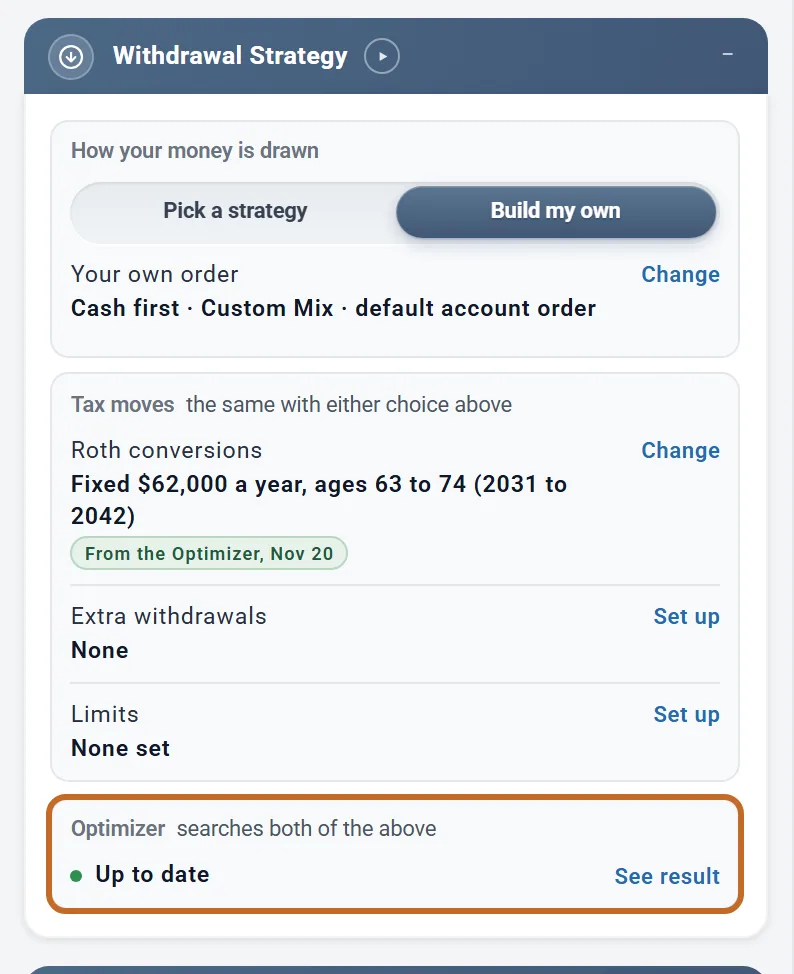
The Withdrawal Strategy box in the settings panel has three parts. How your money is drawn holds Pick a strategy or Build my own. Tax moves lists your Roth conversions, extra Pre-Tax withdrawals and limits, with who made them. Optimizer (ringed) shows the search's words and one link: Run it, or See result when it is up to date. The link opens the Optimizer page; it does not start a search.
There is no separate Optimizer box and no Roth Conversions box any more: this box replaced both.
The Dashboard pill
At the top left of the Dashboard chart (not on the Taxes or Cash Flow charts), a pill keeps its own short words:
- Try the Optimizer: no result in use, or you went back to your settings.
- Optimized plan: On: a result is in use, and nothing has changed since.
- Optimized plan: Update: your plan changed after you used the result.
- Optimized plan: Off: only on plans switched off by an older version of the planner.
Clicking the pill opens the Withdrawal Strategy box and brings its Optimizer part into view. It does not open the tab.
The Summary card
The Optimizer card on the Summary tab says Not run yet until you use a result. Then it shows Optimized plan: On, what the Optimizer's changes are worth in future dollars, worked out again from your plan as it stands, and the strategy in words. For Chris and Jamie: "$741k more after-tax estate with the Optimizer's changes than without them" and "$312k less in lifetime taxes" (the first is the same measure the result card calls Left after taxes at plan end). When your plan has changed it shows Optimized plan: Update available with what the last run found, and Re-run the Optimizer.
On a Preview account this card is blurred.
Outside the US, and plans without a Roth account
| Plan | What the Optimizer tests |
|---|---|
| US, with a Roth account | Everything on this page, with the Quick scan or Thorough search choice and the health insurance note. |
| US, no Roth account | Every withdrawal order, with extra pre-tax withdrawals that fill the 12%, 22% or 24% bracket, inside your limits. No Roth conversions, no depth choice and no year-by-year table. A note says so, with Add a Roth account. The second page of the tab is Tax moves, and it has the same Your limits card. |
| Canada | Every withdrawal order, with extra RRSP / RRIF withdrawals that fill the 14% or 20.5% federal bracket (once OAS starts, the OAS clawback caps the 20.5% fill), from retirement to age 72 or 80, or in every retirement year. Couples: with and without pension income splitting. |
| UK | Every withdrawal order, with extra pension withdrawals that fill the 20% basic-rate band, or go on toward the higher-rate band, stopping at the £100,000 personal-allowance limit, from retirement to age 67 or 75, or in every retirement year. |
| Australia and other countries | Every withdrawal order. |
Outside the US there are no Roth conversions, no health insurance note and no conversion-tax or "extra withdrawals" suggestions, and the panel shows What it tests instead of a depth choice. There are no limits to set either. In Canada and the UK the limits row names the one line every option respects by itself: OAS recovery threshold (automatic) or £100,000 allowance line (automatic). The second page of the tab is Bracket filling; a country with no bracket filling has no second page.
What the Optimizer does not do
- It does not change your plan's choices. It never tests your retirement age, spending, Social Security claiming age, contributions, investment mix or returns, cash choices, minimum balances, account order within a bucket, HSA use, annuities or giving.
- It does not search your limits. It stays inside the ones you set and never suggests a different one. The cost line is the only place it looks past them, for one option.
- Its "extra Pre-Tax withdrawals" are not the Extra Withdrawals box. The Optimizer's extra Pre-Tax withdrawals fill a tax bracket; the Extra Withdrawals box (one-time and yearly withdrawals you plan yourself) is never touched.
- Its "after tax" is a quick estimate. It counts pre-tax money after your Estate tab's Tax-Deferred Rate, one flat rate, while the Estate tab also takes off sale, admin and capital gains costs, so the two figures differ. Its lifetime taxes leave out property tax.
- It uses one projection. Returns and inflation are the same every year, results are in future dollars (Today's dollars changes only the display), and each year's strategy is planned in January from that year's expected income.
- Its results are a snapshot. Only a result you use, or a copy you save, is kept. A reload, a plan switch or any change to your plan clears the result.
- Going back has an edge. Go back to my settings puts back what a result replaced. It does not undo Use this mix or a suggestion applied from an Already optimal card (see When your plan is already near-optimal).
The Optimizer page, the search, Use these settings, Go back to my settings and the suggestions work on every account, including Preview. Copies of a plan and Compare Plans need Planner+. Planner+